
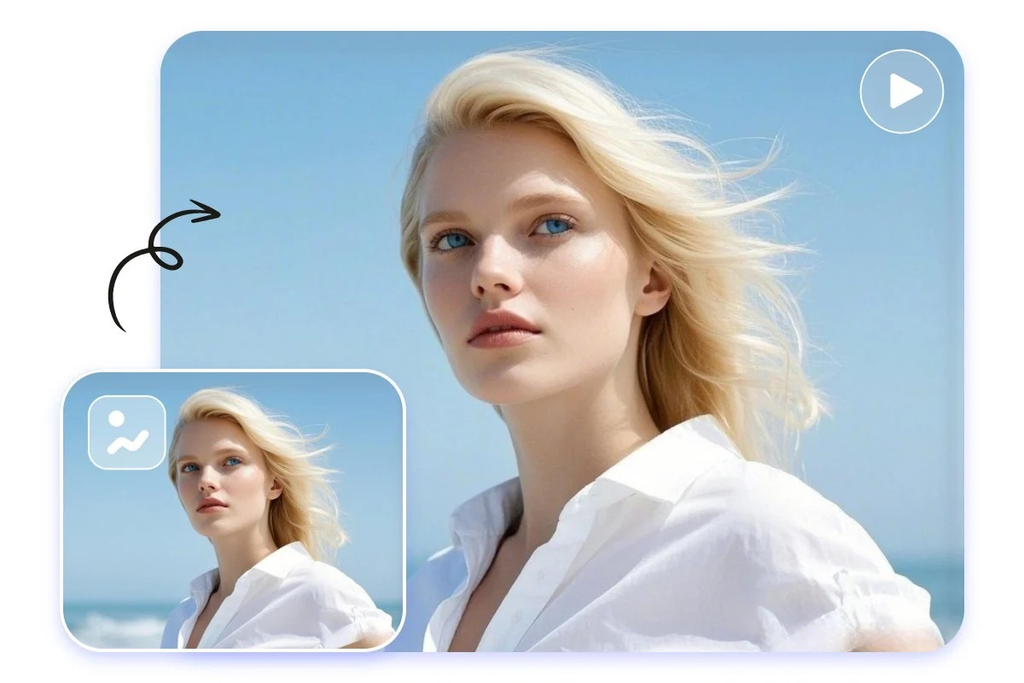
A photograph already makes several decisions for you. It establishes the subject, the lighting, the colors, and the moment worth keeping. Turning it into a video introduces a new question: what should happen next?
The answer changes with the picture. A portrait might need only a blink and a slow camera move. A product photograph needs reflections that move without changing the product. An illustration needs animation that respects its original texture.
Photo to Video AI brings these tasks into an online image to video AI workflow, with image uploads, motion prompts, model selection, and a preview before download. Two options worth exploring are Kling 3.0 and MiniMax H3 Max, each with a dedicated page on the platform.
Rather than treating every photograph as the beginning of an elaborate sequence, it helps to start with one believable action. The following five scenarios show how to build that direction and what to inspect afterward.
A Useful Standard: Recognizable Subjects and Coherent Movement
The first question when reviewing an AI-generated clip should be whether the original subject still looks right.
A face should remain familiar. A perfume bottle should keep its proportions. A dog’s paws should stay connected to a body that moves convincingly. Background motion adds little value if the main subject becomes unstable.
A practical review therefore covers three things: subject consistency, plausible movement, and composition throughout the clip.
Photo to Video AI provides homepage templates labeled Natural motion, Slow push-in, Smooth orbit, and Dynamic action. These supply starting prompts that you can adapt to the photograph. They also include preservation instructions for features such as identity, geometry, lighting, and visual style.
Treat those instructions as creative guidance, then check whether the finished video follows them.
1. Portraits: Let Small Movements Carry the Scene
Portrait animation is sensitive because viewers recognize faces so quickly. A slight change around the eyes or mouth can make the person feel unfamiliar.
Start with a restrained action: natural breathing, one gentle blink, or a small adjustment of the head. Choose a single camera direction rather than combining a push-in, orbit, and dramatic angle change.
The platform’s Rainy portrait example follows this approach, combining subtle facial movement with moving rain and a slow camera push-in.
An adapted prompt might read:
“Add subtle breathing and one gentle blink. Keep the face, expression, and clothing consistent. Slowly move the camera closer while rain moves down the window.”
Check the eyes, mouth, jawline, and hair edges across the entire result. If the identity drifts, remove one moving element before trying again.
A quiet portrait can still feel alive. The expression does not need to become a performance.
2. Product Photography: Keep the Object Accurate
Product animation introduces a practical constraint: the item must still represent what is being sold.
Moving highlights can make glass or metal appealing, but a shifting cap, stretched label, or changing silhouette can undermine the clip.
Photo to Video AI includes a Luxury product example with a perfume bottle. Its configured prompt asks for a controlled camera orbit and changing reflections while preserving the bottle’s geometry, materials, cap, and pedestal.
For an initial attempt, you could simplify that direction:
“Use a slow camera push toward the bottle. Let soft highlights move across the glass. Preserve the bottle shape, cap, label, and proportions.”
Inspect the outline before judging the atmosphere. Look closely at lettering and small construction details, particularly when they approach the edge of the frame.
If a wide orbit reveals inconsistent surfaces, try a smaller camera movement. Choose the version that represents the product accurately, even when another version looks more dramatic.
3. Pet Photos: Choose One Action That Fits the Pose
A sitting dog does not need to become a running dog for the video to work.
Start with something the visible pose supports: a blink, a slight head tilt, or breathing accompanied by softly moving fur.
The platform’s Coastal dog example combines small animal movements with a breeze affecting the grass and surrounding environment. Its prompt explicitly asks to preserve anatomy and position.
A focused version could be:
“The dog blinks and gently tilts its head. A coastal breeze moves its fur and nearby grass. Keep its body shape, paws, and position consistent.”
Watch the ears and paws, then check the animal’s contact with the ground. The weight should still feel supported as the movement develops.
If the body becomes unstable, hold the camera still on the next attempt. This gives you one fewer changing element to evaluate.
4. Illustrations: Animate Within the Existing Style
Illustrations already have a visual language. Watercolor edges, paper texture, painted shadows, and simplified shapes all contribute to the image.
The animation brief should name the features that matter.
Photo to Video AI’s Storybook fox example includes layered parallax, a flickering lantern, drifting fireflies, and a carefully described character movement. It also asks to preserve the watercolor storybook style.
For a first version, consider leaving the character mostly still:
“Preserve the watercolor texture, painted outlines, and fox character design. Let the lantern flicker and nearby leaves sway. Add gentle foreground and background parallax.”
Check whether the texture remains coherent as the scene moves. A character can retain its general shape while losing the brushwork that made the original appealing.
This is a useful direction for moving book-cover concepts, illustrated social posts, and short introductions to a character or setting.
5. Old Family Photos: Keep the Movement Gentle
Family photographs often matter because of their specific expressions and familiar details. Animation should give those details room to remain recognizable.
Choose the clearest scan available and avoid requesting large changes when faces are small or the original has limited detail.
A possible prompt is:
“Add very subtle breathing and a gentle camera push-in. Preserve facial features, expressions, clothing, and the original photographic character.”
For group photographs, inspect each person separately. A convincing overall composition can hide a noticeable change in one face.
The resulting movement is newly generated. It does not recover an original recording of the moment. Understanding that distinction helps set the right expectations for a family tribute or moving keepsake.
Choosing Between Kling 3.0 and MiniMax H3 Max
Photo to Video AI offers dedicated pages for both models, allowing you to begin with a specific model and review its available controls.
| Model | Verified controls and workflow details |
| Kling 3.0 | Supports 3–15-second clips, quality modes, framing controls, and sound options in its dedicated workflow. |
| MiniMax H3 Max | Supports 5–15 seconds in whole-second steps, with 480P or 768P output. Its page accepts a photo for animation or text for generation without a photo. |
These differences affect how you plan a first attempt. A short portrait movement may need only a brief shot, while an action with an opening, development, and ending needs more time.
For a meaningful comparison, keep the source image and motion brief consistent. Judge how each result handles the details important to that photograph.
With MiniMax H3 Max, the configured cost for a five-second clip at 480P is 59 credits. The model requires purchased credits, and other settings or reference workflows can change the total. Check the form’s current estimate before generating.
There is no need to choose a permanent favorite. Select the model and settings that suit the next image.
How to Run a Focused Image to Video AI Workflow
Upload a Clear Source
Sign in and upload a JPG, PNG, or WEBP image. Keep important edges visible and leave space for the planned movement.
A tightly cropped subject may require a simpler action than one with room around it.
Write the Action and Camera Direction Separately
Use the image to establish appearance. Spend the prompt describing what moves, how the camera behaves, and what must remain consistent.
For example:
“Steam rises from the cup. The camera slowly pushes in. Preserve the ceramic shape and warm side lighting.”
That gives you a clear result to assess.
Choose Settings and Check the Credit Estimate
Select the model, duration, and available output controls. Recheck the options after switching models, since their settings differ.
For the first draft, use a short duration and an economical available setting. Resolve the movement before spending more on a refined version.
Review Before Downloading
Watch the full clip, including its ending. Check faces, anatomy, lettering, product geometry, and background structure.
When revising, change one part of the brief at a time. A completed generation’s new version uses additional credits, so each attempt should answer a specific creative question.
When the Idea Needs More Than One Picture
Some scenes need a defined destination. Photo to Video AI provides a First & Last Frame workflow for guiding the opening and ending with images.
Reference to Video provides another route when multiple references are useful for appearance or scene guidance. Supported inputs and limits depend on the chosen model.
A gentle portrait can begin with one photograph. A transformation that must finish on a particular composition benefits from an ending image.
The most useful image to video AI result gives the original picture a believable next moment. Start with one action, preserve the details that matter, and review the entire clip. That approach gives portraits, products, pets, illustrations, and family memories a clearer path from still image to usable video.