
If you’re just starting your digital art journey, picking your first drawing tablet can feel overwhelming. Worry not! Here comes the ultimate guide to help you pick up the right drawing tablet for you.
Generally, there are 3 types of drawing tablets available on the market. Before diving into specific models, let’s have a quick look at the difference between them.
3 types of drawing tablets
| Type | How It Works | Price Range | Best For |
| Screenless (Pen Tablet) | Draw on a plastic surface while looking at your computer monitor | $30–150 | Beginners who want the best value; most professionals use these |
| Pen Display | Draw directly on a built-in screen | $150–500+ | Artists who want “draw what you see” immediacy |
| Standalone Tablet | All-in-one device with its own screen and operating system | $350–500+ | Artists who want to draw anywhere without a laptop |
Below are our top picks for 2026 across all three categories, based on real user reviews, expert testing, and hands-on experience.
Top Picks: Best Drawing Tablets for Beginners in 2026
We’ve tested six outstanding options across three categories. All are excellent for beginners, you can pick one at your needs.
Type 1: Screenless Pen Tablets (Best Value)
These are the workhorses of the digital art world. No screen means you get better components for less money.
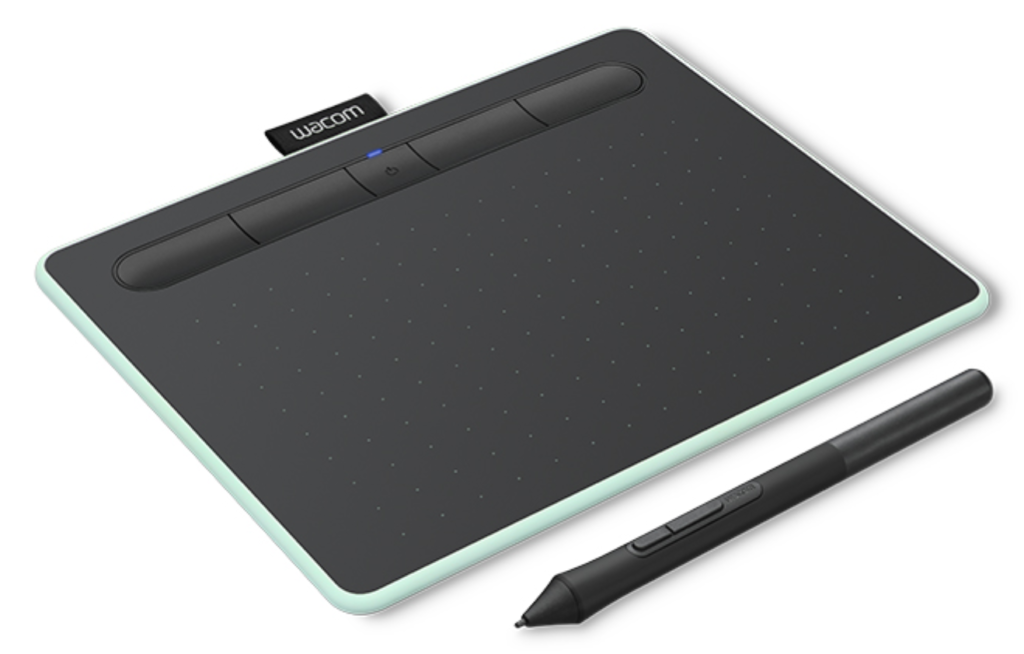
Product 1: Wacom Intuos (Small or Medium) — The Industry Standard
Pros & Cons
Pros:
- Industry-leading pen precision and reliability
- rock-solid drivers
- Bluetooth available on some models
- legendary durability
Cons:
- only 4,096 pressure levels
- more expensive than alternatives
Why We Picked It
Wacom has been making drawing tablets since 1983, and the Intuos line is their entry-level offering. For beginners who want reliability above all else, this is the safe choice.
Who It’s For
Beginners who want the most stable, professional experience possible and plan to stick with digital art long-term.
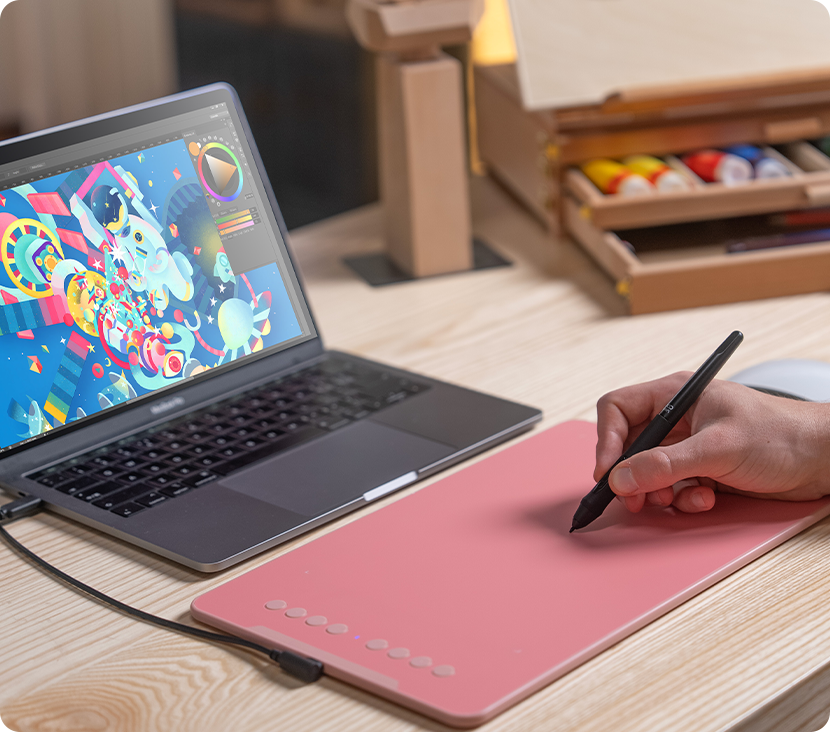
Product 2: XPPen Deco 01 V3 — Best Overall Screenless Tablet
Pros & Cons
Pros:
- Large 10 x 6.25-inch active area
- 16,384 pressure levels
- 60-degree tilt recognition
- 8 customizable shortcut keys
- slim 8mm profile
- works with Android devices
Cons:
Driver installation can be finicky on macOS
Why We Picked It
The XPPen Deco 01 V3 is what most experts recommend to beginners who want a serious drawing experience without the Wacom price tag. The large active area gives you room for natural arm movements (not just wrist flicks), and the 8 shortcut keys keep your hands off the keyboard. The pen feel is remarkably similar to Wacom’s industry standard at a fraction of the cost.
Who It’s For
Beginners who want a “buy once, use for years” tablet. Ideal for digital illustration, manga, concept art, and anyone who wants a large drawing area without spending over $80.
Product 3: UGEE S640 — Best Ultra-Budget Starter
Pros & Cons
Pros:
- Incredibly affordable ($30–40)
- 8,192 pressure levels
- plug-and-play on most devices
- battery-free pen
- lightweight and portable
Cons:
- Small active area (6.5 x 4 inches) can feel cramped
- no shortcut keys
- build quality feels basic
Why We Picked It
The UGEE S640 is the lowest-risk way to try digital drawing. If you’re not sure you’ll stick with the hobby, this tablet delivers professional-grade pressure sensitivity for less than the price of a video game. It works right out of the box on Windows, Mac, and Android — no driver headaches.
Who It’s For
Absolute beginners on a tight budget, students, or anyone who wants to test the waters before committing to a more expensive tablet.
Type 2: Pen Displays (Draw on Screen)
These tablets have built-in screens, so you can draw directly on the display.
Product 4: XPPen Artist 12 3rd — Best Budget Pen Display
Pros & Cons
Pros:
- 11.9-inch fully laminated display (minimal parallax)
- 16,384 pressure levels with advanced X4 Smart Chip stylus
- 8 customizable shortcut keys
- 99% sRGB color accuracy
- lightweight and portable
Cons:
- Requires connection to a computer (not standalone)
- 1080p resolution (fine for beginners, but pixels visible up close)
Why We Picked It
The XPPen Artist 12 3rd is the most cost-effective pen display we can recommend without major compromises. The fully laminated screen eliminates the distracting “gap” between pen tip and cursor found on cheaper displays. The new X4 Smart Chip stylus delivers an impressive 16,384 pressure levels with just 2g of initial activation force, which means even the lightest touch registers. For a beginner who just can’t get used to screenless tablets, this is the perfect entry point into pen displays.
Who It’s For
Beginners with a slightly higher budget ($180–250) who want direct-on-screen drawing. Ideal for those coming from paper sketching or an iPad who find screenless tablets frustrating.
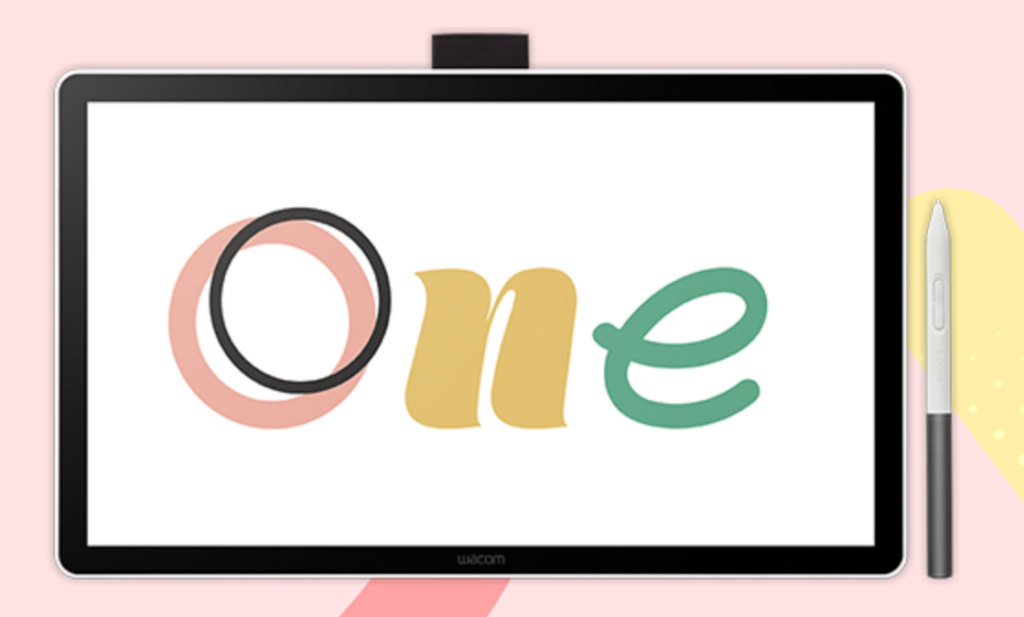
Product 5: Wacom One — The Trusted Name in Pen Displays
Pros & Cons
Pros:
- 13.3-inch Full HD display
- matte anti-glare surface; battery-free pen with 4,096 pressure levels and tilt
- lightweight and portable
- includes Clip Studio Paint and Bamboo Paper
Cons:
- Lower pressure sensitivity (only 4,096)
- no shortcut keys on the tablet
Why We Picked It
The Wacom One is the entry-level pen display from the industry leader. While its specs (4,096 pressure levels) look weaker on paper, the drawing experience is still excellent. Wacom’s pen technology is so refined that the lower number doesn’t feel like a limitation in practice. This is the “safe” choice if you trust the Wacom brand above all else.
Who It’s For
Beginners who want a larger pen display from a trusted brand and don’t mind paying a bit more for Wacom’s reliability.
Type 3: Standalone Drawing Tablets (No Computer Needed)
These are all-in-one devices with their own screens and operating systems. You can draw anywhere without a laptop.
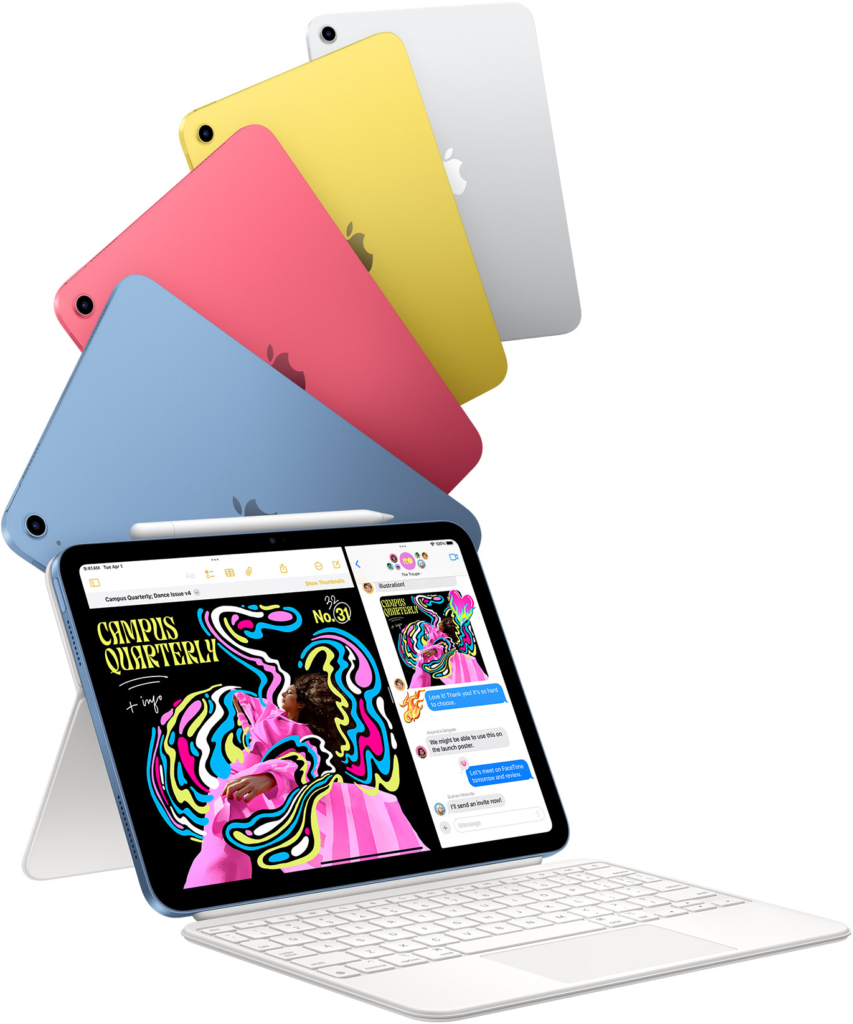
Product 6: iPad + Apple Pencil — The Premium Standalone
Pros & Cons
Pros:
- Best-in-class app ecosystem (Procreate is iPad-only)
- excellent screen quality
- highly portable
- massive community support and tutorials
- Apple Pencil is incredibly responsive
Cons:
- Expensive ($350 for iPad + $79–129 for Pencil)
- Apple Pencil needs charging (unlike battery-free EMR pens)
- glossy screen can be slippery (matte screen protectors help)
- locked into Apple ecosystem
Why We Picked It
The iPad with Apple Pencil is arguably the most popular digital drawing setup in the world, and for good reason. Procreate ($13 one-time fee) is widely considered the best drawing app for beginners — intuitive, powerful, and affordable. The combination of iPad hardware and Apple Pencil response is excellent. The catch? Price. An 11th-gen iPad plus Apple Pencil will run you around $450–500. For many beginners, that’s a steep entry point.
Who It’s For
Beginners who want a standalone device for drawing anywhere, already use Apple products, or specifically want to use Procreate. Also great for artists who want one device for drawing and general tablet use (browsing, streaming, reading).
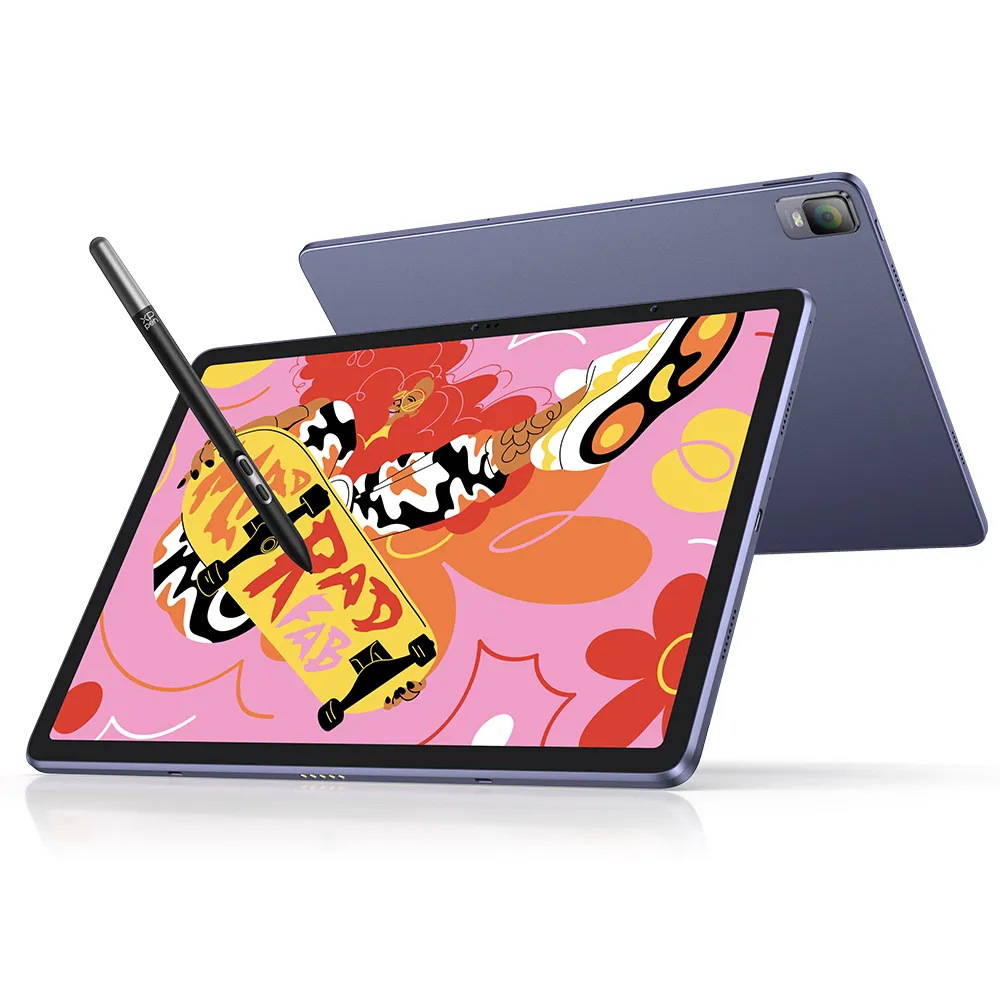
Product 7: XPPen Magic Drawing Pad — The Drawing-First Standalone
Pros & Cons
Pros:
- Designed specifically for artists matte etched glass surface feels like paper
- 12.2-inch display with 3:2 aspect ratio (great for drawing)
- stylus included. 16,384 pressure levels with battery-free X3 Pro Pencil
- runs Android (open ecosystem)
Cons:
- Android drawing apps aren’t as polished as iPad’s
- processor is mid-range (not for heavy multitasking)
Why We Picked It
The XPPen Magic Drawing Pad is the best iPad alternative for artists who care more about drawing feel than premium display quality. The matte etched glass surface gives you the perfect amount of resistance — it genuinely feels like drawing on paper. No glossy screen slippage, no need for a separate matte screen protector. And unlike the iPad, the stylus is included and never needs charging. For beginners who want a standalone device but don’t want to pay iPad prices, this is the answer.
Who It’s For
Beginners who want a standalone drawing tablet without buying into the Apple ecosystem. Perfect for artists who prioritize paper-like feel and value over screen polish. Also great for students and hobbyists who want to draw anywhere without a laptop.
Below is a comparison of these 7 models.
| Product | Type | Screen/Active Area | Pressure Levels | Shortcut Keys | Stylus Included | Approx. Price | Best For |
| UGEE S640 | Screenless | 6.5 x 4″ | 8,192 | 0 | ✅ | $30–40 | Absolute budget starter |
| XP-Pen Deco 01 V3 | Screenless | 10 x 6.25″ | 16,384 | 8 | ✅ | $50–80 | Best overall value |
| Wacom Intuos | Screenless | 6 x 3.7″ (S) / 8.5 x 5.3″ (M) | 4,096 | 4 | ✅ | $80–150 | Industry reliability |
| XP-Pen Artist 12 (3rd Gen) | Pen Display | 11.9″ screen | 16,384 | 8 | ✅ | $180–250 | Best budget pen display |
| Wacom One | Pen Display | 13.3″ screen | 4,096 | 0 | ✅ | $250–350 | Trusted brand pen display |
| iPad + Apple Pencil | Standalone | 10.9″ screen | 4,096 | None | ❌ (sold separately) | $450–500 | Premium standalone + Procreate |
| XPPen Magic Drawing Pad | Standalone | 12.2″ screen | 16,384 | On-screen | ✅ | $400–500 | Drawing-first standalone |
FAQs
Q: How long does it take to get used to a screenless tablet?
A: Most people need 1–2 weeks of daily practice. Start with simple exercises — drawing straight lines, circles, and zigzags. Don’t try to make finished art immediately. After two weeks, the hand-eye coordination becomes muscle memory. Most beginners who “couldn’t get used to it” gave up after 2-3 sessions — that’s too early to judge.
Q: What software should I use as a beginner?
A: Free options: Krita (full-featured, excellent brush engine) or MediBang Paint (lightweight, good for manga). Paid options: Clip Studio Paint (~$25/year, industry standard for comics and illustration) or Adobe Photoshop (powerful but expensive). If you get an iPad, Procreate ($13 one-time) is the best choice.
Q: Can I use these tablets with Chromebooks or Android phones?
A: Some, but check compatibility first. The UGEE S640 and XP-Pen Deco 01 V3 work with Android devices. Wacom Intuos works with Chromebooks. Always check the manufacturer’s compatibility list before buying.
Q: Do I need a screen protector for my tablet?
A: For screenless tablets, no — the surface is designed to be drawn on. For pen displays, it’s optional. For glossy standalone tablets like the iPad, a matte “paper-feel” screen protector can significantly improve the drawing experience (but it will reduce screen clarity).