

There’s nothing quite like the immersive experience of a well-designed home theater. From cinematic surround sound to crystal-clear visuals, today’s technology allows us to recreate the magic of the big screen right in our living rooms. But what happens when one display isn’t enough? Whether you want to extend your viewing area, mirror content for guests in another room, or simply enjoy dual screens for a more versatile setup, connecting multiple displays to a single source can feel like a daunting challenge. This is where HDMI splitters come in as the ideal solution, allowing you to distribute high-quality audio-visual signals from one device to two or more monitors without sacrificing picture or sound quality. For home theater enthusiasts seeking flexibility and performance, understanding how these devices work is essential. This article will guide you through everything you need to know about selecting the right HDMI splitter for dual monitors, setting it up correctly, and maximizing your home theater experience with multiple displays.
What Are HDMI Splitters and Why You Need Them for Dual Monitors?
An HDMI splitter is a compact device that takes a single HDMI input signal and duplicates it across multiple outputs, allowing you to display the same content on two or more screens simultaneously. Think of it as a signal duplicator—your Blu-ray player, streaming device, or gaming console connects to the splitter’s input, and identical audio-visual data flows out to each connected display.
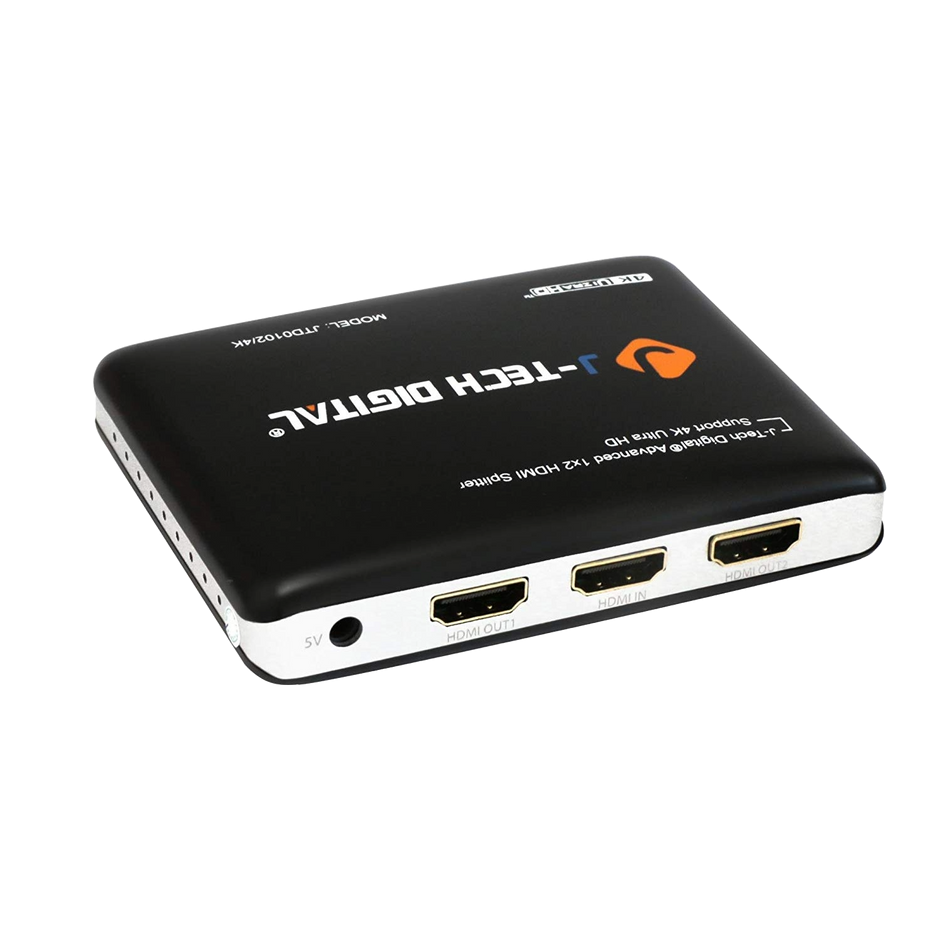
It’s important to distinguish splitters from similar devices. An HDMI switch does the opposite—it lets you connect multiple sources to one display and toggle between them. An HDMI extender, meanwhile, boosts signal strength over long cable runs but doesn’t multiply outputs. The splitter specifically addresses the need to distribute signals from one source to multiple monitors.
For home theater enthusiasts, the demand for dual monitor setups continues to grow. Perhaps you want a second screen in an adjacent room so family members can watch the same movie, or you’re designing an expansive viewing wall that requires two displays working in unison. An HDMI splitter for dual monitors solves this elegantly without requiring additional source devices or complicated workarounds. It preserves the original signal quality across both outputs, ensuring that your carefully curated home theater delivers seamless video performance no matter how many eyes are watching from how many screens.
Choosing the Right HDMI Splitter: Key Features for Home Theater Enthusiasts
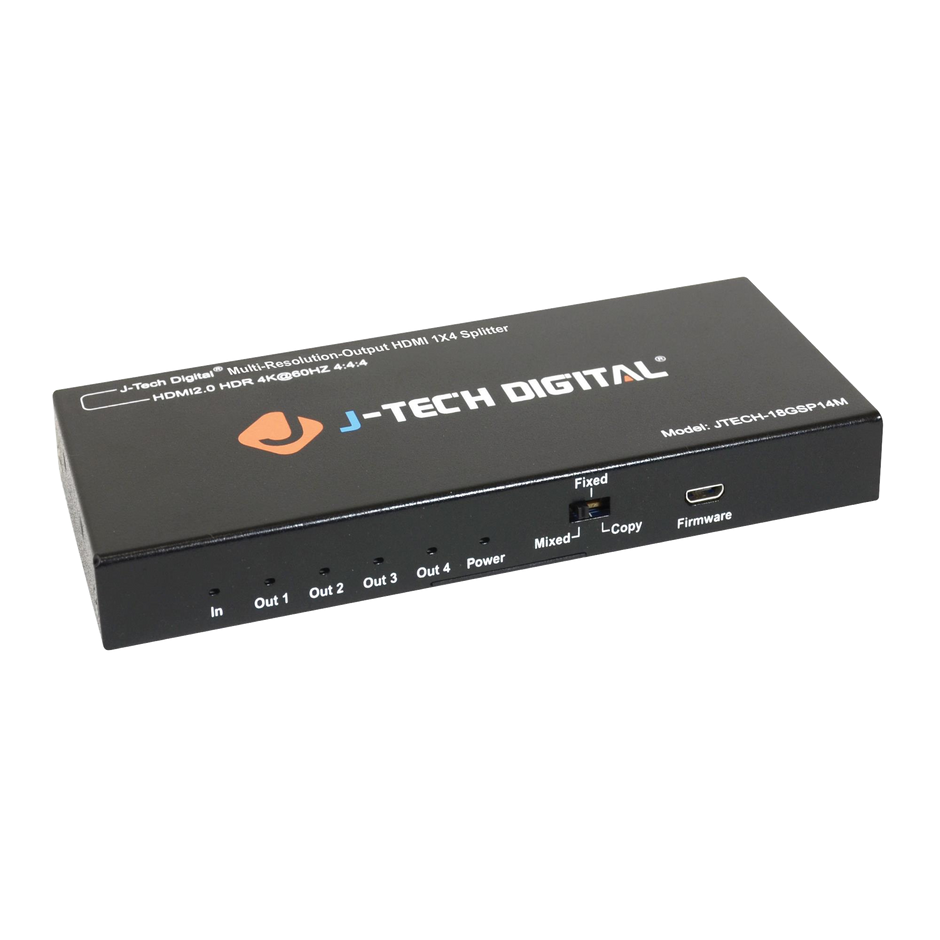
Not all HDMI splitters are created equal, and selecting the wrong one can mean the difference between a stunning cinematic experience and a frustrating evening of flickering screens. For home theater enthusiasts investing in high-end displays and source equipment, the splitter you choose must match the capabilities of your entire signal chain. A quality HDMI splitter should support modern resolution standards, offer robust build construction, and come from a manufacturer with a proven track record in audio-visual equipment. Companies like J-Tech Digital Inc specialize in AV transmission and processing equipment, offering splitters designed specifically for demanding home theater applications. Beyond the basics, you’ll want to evaluate how well the device maintains signal integrity across both outputs—cheap splitters often degrade the signal, introducing artifacts or dropping audio channels. Pay attention to whether the unit requires external power, as powered HDMI splitters generally deliver more reliable performance over longer cable runs. Additionally, consider future-proofing your investment by choosing a splitter that supports 4K HDMI standards and beyond, ensuring your setup remains relevant as content providers continue pushing higher resolutions and dynamic range formats.
Resolution and Bandwidth Considerations
Your splitter’s resolution support directly determines what you’ll see on screen. For a true home theater experience, look for a device that handles 4K at 60Hz as a minimum, with HDR passthrough capabilities including HDR10 and Dolby Vision. Bandwidth is the underlying factor here—a splitter rated for 18 Gbps supports 4K at 60Hz with full color depth, while newer models rated at 48 Gbps accommodate 4K at 120Hz or even 8K content. If your splitter’s bandwidth ceiling is too low, it will either downscale your content automatically or fail to display it altogether. For movie enthusiasts who appreciate deep blacks and vivid colors, ensuring your splitter passes through full 4:4:4 chroma subsampling without compression is critical to preserving the director’s intended visual presentation.
Compatibility and Connectivity Options
A splitter is only as useful as its ability to work with your existing equipment. Verify that the device supports the HDMI version your source and displays use—HDMI 2.0 for most current 4K setups, or HDMI 2.1 if you’re running a next-generation gaming console or high-refresh-rate display. Check that it handles HDCP 2.2 or 2.3 content protection, since most streaming services and Blu-ray players require this handshake to output protected content. On the physical side, ensure the splitter accommodates your cable lengths and types without signal degradation. Some HDMI devices may also require specific audio format support—if your setup relies on Dolby Atmos or DTS:X passthrough to an AV receiver, confirm the splitter passes these bitstream formats without stripping them down to basic stereo or compressed surround channels.
Step-by-Step Guide to Setting Up Your HDMI Splitter for Seamless Dual Monitor Display
Getting your HDMI splitter up and running doesn’t require professional installation, but following a methodical approach ensures you avoid common pitfalls and achieve the seamless dual monitor display you’re after. Before touching any cables, gather everything you’ll need: your HDMI splitter, a high-speed HDMI cable for the source connection, two HDMI cables for your dual monitors, the splitter’s power adapter if it’s a powered unit, and of course your source device and displays.
Start by powering off all HDMI devices in your chain—your source player, both monitors, and any AV receiver in the loop. Connect a high-quality HDMI cable from your source device’s output into the splitter’s clearly labeled input port. Next, run individual HDMI cables from each of the splitter’s output ports to your respective displays. Keep cable runs as short as practical; longer distances introduce potential for signal degradation, particularly with 4K content. If you must run cables beyond five meters, consider certified premium high-speed cables or active optical HDMI cables rated for your resolution needs.
With all physical connections secure, plug in the splitter’s power adapter. Powered splitters actively amplify the signal to distribute signals reliably across both outputs, so never skip this step even if the unit appears to function without it initially. Now power on your displays first, then the splitter, and finally your source device. This boot sequence matters because it allows proper EDID handshaking—the communication protocol where displays report their capabilities to the source through the splitter.
Once everything is powered up, check both screens for a matching image. If one display shows content while the other remains blank, try swapping the output cables to isolate whether the issue lies with a specific port or cable. Navigate to your source device’s display settings and confirm the output resolution matches what both monitors support. When your displays have different native resolutions, the splitter typically defaults to the lower common resolution to maintain compatibility across both screens. For the best results, use identical or similarly-specced monitors so the splitter can output at maximum quality without compromise. If audio isn’t reaching your intended destination, check whether your source is set to output via HDMI and verify the splitter isn’t routing audio exclusively to one output.
Benefits of Using HDMI Splitters for Enhanced Audio-Visual Experience
The practical advantages of incorporating an HDMI splitter into your home theater extend well beyond simply having two screens. Cost-effectiveness stands out immediately—rather than purchasing a second streaming device or Blu-ray player, a single splitter lets you leverage one source across multiple displays for a fraction of the price. This approach also simplifies your setup, reducing the number of remotes, subscriptions, and devices you need to manage.
Flexibility in display arrangement is another compelling benefit. Home theater enthusiasts can position a primary screen in the main viewing area while routing a duplicate feed to a bedroom, kitchen, or outdoor patio. Gamers appreciate dual monitor configurations for streaming their gameplay on one screen while playing on another, and sports fans can set up viewing stations in multiple rooms during big events without missing a single play. For those who work from home, HDMI splitters make presentations effortless—mirror your laptop’s output to a large display for clients while maintaining your own view. Throughout all these scenarios, a quality splitter maintains full signal integrity, delivering the same rich colors, sharp details, and immersive surround sound to every connected display. The result is a more versatile, enjoyable audio-visual ecosystem built around equipment you already own.
Common Issues and Troubleshooting Tips with HDMI Splitters
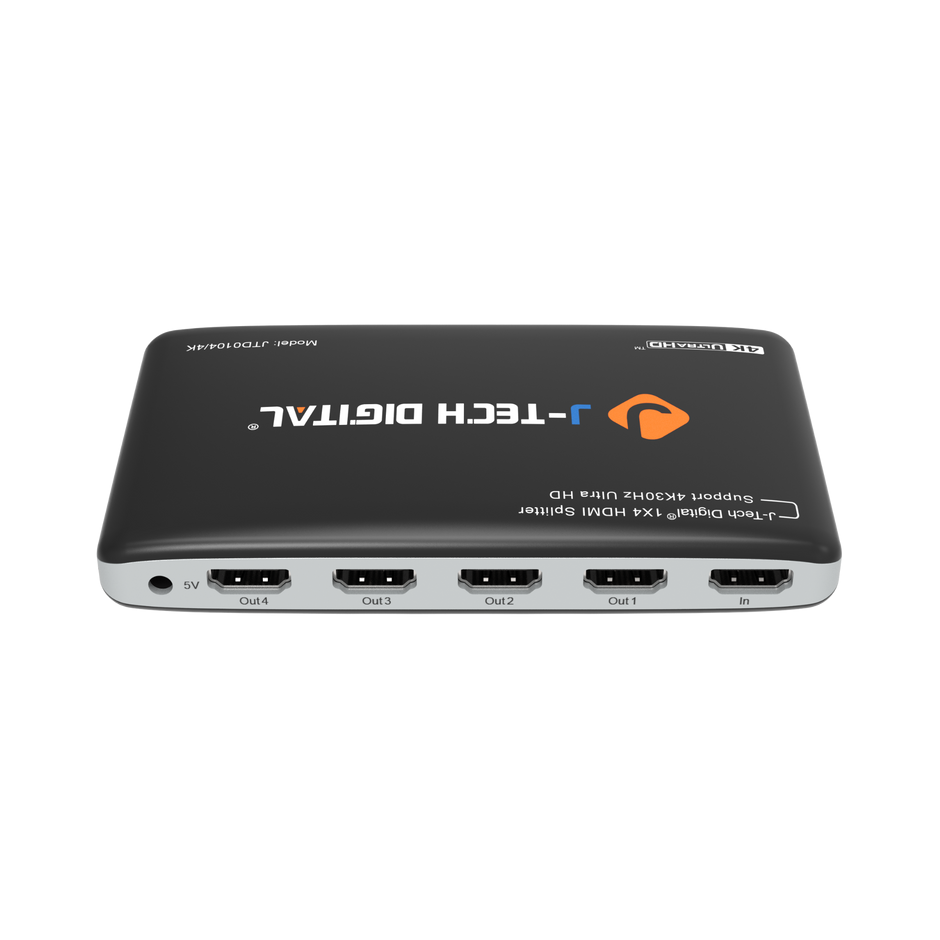
Even the best HDMI splitters can encounter hiccups. Signal loss or a blank screen on one output often results from a failed HDCP handshake—resolve this by power cycling all devices in sequence, starting with displays, then the splitter, and finally the source. If you notice resolution drops where your 4K content displays at 1080p, check that all cables in the chain are certified for your target bandwidth, since a single substandard cable will force the entire system to downgrade. Flickering or intermittent dropouts typically point to loose connections or cables running too close to sources of electromagnetic interference, so reseat all connectors and reroute cables away from power lines. When one monitor works but the other doesn’t, test each output independently to determine whether a specific port has failed. As a preventive measure, always use powered splitters for dual monitor setups, keep firmware updated when the manufacturer offers it, and invest in premium certified HDMI cables from the start. These practices ensure your home theater delivers reliable, uninterrupted performance every time you press play.
Building Your Ideal Multi-Display Home Theater Setup
Selecting the right HDMI splitter for dual monitors can transform your home theater from a single-screen setup into a versatile, multi-display experience that serves every room and every occasion. As we’ve explored, the key lies in matching your splitter’s capabilities to your equipment—prioritizing adequate bandwidth for 4K and HDR content, ensuring HDCP compatibility with your source devices, and investing in powered units with quality cables for reliable signal distribution. The setup process itself is straightforward when you follow proper sequencing and pay attention to EDID handshaking between your displays and source. Whether you’re extending movie night to multiple rooms, enhancing your gaming streams, or building an impressive presentation system, HDMI splitters deliver flexibility and performance without the expense of duplicating your entire source equipment chain. As display technology continues advancing toward higher resolutions, faster refresh rates, and richer HDR formats, choosing a future-proof splitter today ensures your home theater remains ready for tomorrow’s content. Take these insights, evaluate your specific needs, and build the multi-display setup that brings your audio-visual vision to life.