
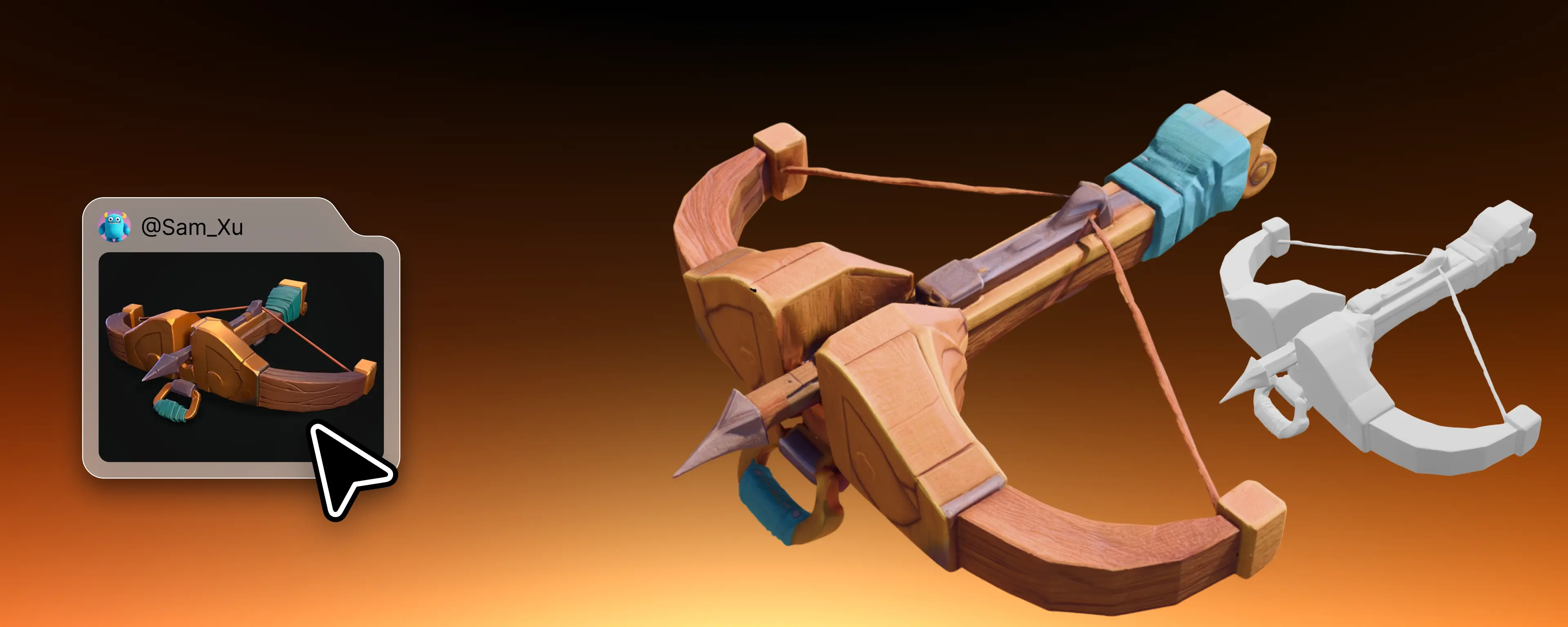
Turn flat pictures into tactile models with a clear, repeatable workflow. In this guide, you will learn how to convert image to 3D model using image to STL techniques that work with Ultimaker Cura, PrusaSlicer, and Bambu Studio. We outline the steps that make 2D to 3D conversion reliable for classrooms, studios, and product teams across the United States.
Here is the plan. Start by selecting the right photo or logo. Then create depth data with height maps and reliefs. From there, generate a mesh, repair it for watertightness, and validate it for fabrication. This image-based 3D modeling pipeline delivers clean results ready for STL for 3D printing.
For speed and precision, Hyper3D image to stl handles the heavy lifting from source image to mesh. To showcase your result, Vidu image to video AI can animate a render or the original artwork, giving clients and students a vivid preview before a single layer is printed.
Expect accurate contours, smooth surfaces, and smart optimization. We will cover common settings that matter, from contrast in your source image to mesh cleanup that avoids print failures. By the end, 2D to 3D conversion will feel practical, efficient, and repeatable—ready for your next prototype or class demo.
What Is an STL File and Why It Matters for 3D Printing
The STL format is the workhorse of desktop and industrial 3D printing. It stores shape as a triangle mesh, not colors or materials, which keeps files lean and focused on geometry. Because most slicers from Ultimaker Cura to PrusaSlicer expect clean, manifold geometry, a watertight model in STL gives strong slicer compatibility and predictable toolpaths.
Tip: Binary STL is compact and fast to load, while ASCII STL is human-readable for quick checks. Either way, each facet lists three vertices and a normal, which your printer software uses to build layers.
How STL meshes represent 3D geometry
In an STL format file, surfaces are tessellated into a triangle mesh. Each triangle defines its vertex coordinates and a facet normal that orients the face. When every edge belongs to exactly two triangles, you have manifold geometry; when all seams close, you have a watertight model.
This structure is ideal for slicing. Correct normals and consistent winding reduce mesh artifacts, while a balanced triangle count preserves detail without bloating memory.
When to choose STL over OBJ, PLY, or STEP
For printing, OBJ vs STL comes down to simplicity. OBJ carries textures and groups, but printers ignore most of that. STL keeps only what matters for layers and infill.
With PLY vs STL, PLY supports per-vertex color, great for scanning with tools from Apple and Intel depth sensors. Yet many workflows still convert to STL for slicer compatibility and reliable supports.
Considering STEP vs STL, STEP holds parametric solids for CAD, ideal in SolidWorks, Siemens NX, or Autodesk Fusion. Before printing, those solids are meshed, so exporting to STL is the pragmatic step for toolpath generation.
Common pitfalls with STL files and printability
Most printability issues trace back to geometry. Non-manifold edges, flipped normals, and self-intersections create holes and mesh artifacts that stop slicing. Extremely dense meshes balloon file size and slow previews without adding real-world detail.
Check wall thickness against nozzle width or resin limits, and watch overhangs past roughly 45 degrees. Hollow resin parts need drain holes; otherwise suction traps resin and stresses the print.
Mind units: STL has no explicit scale. Many slicers assume millimeters, so confirm size on import. Validate and repair with Autodesk Meshmixer, Blender’s 3D Print Toolbox, or Autodesk Netfabb to restore watertight model integrity and ensure clean, manifold geometry for dependable results.
Choosing the Right Image for 2D to 3D Conversion
A high-contrast image sets the stage for clean edges and clear forms. Strong lights and darks help with silhouette extraction and produce reliable depth from image results. Logos, line art, and product marks tend to yield sharp geometry for relief modeling and quick logo to 3D workflows.
Start with vector vs raster in mind. Vector inputs like SVG, AI, or EPS scale cleanly and extrude with crisp borders. Raster files such as PNG or JPEG should be at least 1000–2000 pixels on the short side for badges, and near 4K for detailed plaques. Avoid heavy compression, motion blur, and noisy textures that can cause mesh speckling.
Use background removal before any height-map pass. Adobe Photoshop, Affinity Photo, and remove.bg help isolate the subject, reduce clutter, and lock in clear edges. Then tune levels or curves so the model reads well: darker can map to lower and lighter to higher, or the reverse, depending on your tool. This makes depth from image predictable and stable.
Think about the final print. FDM favors thicker walls and bolder shapes, while resin printers preserve finer features in relief modeling. Keep strokes, line gaps, and micro text within the minimum feature size for your machine to keep the detail intact after slicing and post-cure.
Tip: When preparing a logo to 3D, test a small crop first to see how silhouette extraction handles corners, serifs, and thin strokes. If edges look soft, increase contrast or switch to a clean vector source before sending it to Hyper3D image to stl or another converter.
Hyper3D image to stl,Vidu image to video AI
Turn flat art into tangible assets, then make them move. Use image-based 3D reconstruction to build accuracy first, and add motion second. This flow keeps the model print-ready while the visuals stay exciting for audiences.
When to use Hyper3D for precise 3D model extraction
Choose Hyper3D image to stl when edges must be clean and thickness consistent. It excels at AI 3D model extraction for logos, badges, emblems, and shallow reliefs where brand geometry matters. Expect watertight meshes with sensible normals for reliable printing.
For product icons or trim pieces that must fit, the method locks in scale and surface detail. Keep the STL as the single source for fabrication while renders show color and finish.
Using Vidu to animate your 3D assets with image-to-video workflows
After you render turntables or frames from Blender, Autodesk Fusion 360, or KeyShot, feed them to Vidu image to video AI. It creates smooth pans, parallax, and lighting shifts that serve as an AI video preview of the object.
This quick motion pass works well for a product animation on social posts, crowdfunding updates, and client reviews. The clip highlights geometry and scale while the STL remains unchanged and printable.
Combining static STL models with motion previews for engagement
Build a simple pipeline: generate the STL in Hyper3D, render perspective shots with brand colors, then craft a short motion teaser in Vidu. The motion teaser elevates interest without touching the production mesh.
Maintain two tracks—one for watertight export and one for polish. This pairing blends the rigor of Hyper3D image to stl with the reach of Vidu image to video AI, turning precision assets into shareable stories through an AI video preview and refined product animation.
Step-by-Step: Convert an Image to a 3D STL
Turn a flat picture into a printable model by moving from smart image preprocessing to a clean STL export. Keep edits light but precise, and make each step build toward a mesh that slices without surprises.
Prepare your image: resolution, contrast, and background cleanup
Start with a high-resolution source. Remove backgrounds and stray pixels, then unify edges. Convert to grayscale for reliefs or create vectors for crisp logos. Use Adobe Illustrator or Inkscape’s Trace Bitmap for clean paths, and adjust levels in Photoshop or Affinity Photo to boost contrast. This image preprocessing reduces noise and preserves detail.
Create depth data: height maps, outlines, and reliefs
Map grayscale to depth with Blender’s Displace modifier or Autodesk Fusion 360 emboss tools to form a height map to mesh workflow. For logos, run a vector trace to extrusion at a set thickness, such as 2–4 mm, and add a base plate for stability. Keep steep gradients controlled so features read well after printing.
Generate the mesh and export clean STL files
Use Hyper3D image to stl or your modeling suite to perform mesh generation from the relief or outline. Set polygon density high enough to capture curvature without bloating file size, and apply smoothing sparingly to protect fine edges. Finish with a binary STL export for compact, reliable files.
Validate, repair, and optimize the STL for printing
Open the model in Meshmixer, Netfabb, or Blender’s 3D Print add-on for a thorough manifold check. Fix non-manifold edges and self-intersections with automated mesh repair, then verify wall thickness and scale in millimeters. Decimate dense areas, add fillets or chamfers where stress is likely, and orient parts to reduce supports. For client previews, render a turntable and use Vidu image to video AI to showcase the design before hitting print.
Best Practices for Clean, Printable Models
Start with geometry that respects real-world print limits. Set a sensible minimum feature size based on your process. For resin vs FDM, slender posts and embossed text behave very differently. Keep FDM wall thickness at 1.2–1.6 mm with a 0.4 mm nozzle for strength. On resin machines from brands like Anycubic or Formlabs, features down to 0.3–0.5 mm can work when oriented well and supported.
Control overhang limits to avoid droop and rough surfaces. FDM likes angles under about 45 degrees unless your support strategy is dialed in. With resin, tilt parts 10–30 degrees to reduce suction and trap fewer islands, and add vent and drain holes if you hollow a model. Merge overlapping shells and ensure the mesh is watertight so the slicer does not create gaps or phantom walls.
Plan for tolerance and fit before you print. For snap-together FDM parts, target 0.2–0.4 mm clearance depending on material and brand, like Prusament PLA or PETG. Resin systems can run tighter, but always test your specific printer, resin, and wash/cure routine. Use fillets to ease stress at sharp corners and add chamfers on bottom edges to improve first-layer adhesion.
Mind aesthetics and strength on text, logos, and plaques. Avoid razor-thin letters and spikes that snap during support removal. Extruded sans-serif fonts with enough stroke width stay legible after sanding. For plaques, add a backing plate and slightly raise details so they survive priming. Hyper3D image to stl tends to deliver crisp edges; refine the mesh after conversion to meet these durability goals.
Balance detail with speed by tuning mesh density. Overly dense STLs slow slicing without visible gains, while too few triangles can create faceting. Validate part orientation and your support strategy in the slicer preview before long jobs, and verify wall thickness and overhang limits with built-in analysis tools.
Keep a checklist: confirm minimum feature size, set correct wall thickness, review tolerance and fit, and inspect supports. Whether you choose resin vs FDM, a deliberate approach saves time and material while improving surface quality and durability.
Essential Tools and Software for Image-to-3D Workflows
Turning a flat picture into a printable model starts with choosing the right stack. Quick online image to STL services are great for simple reliefs, while desktop 3D modeling suites give deeper control over precision, texture, and export settings. Match the tool to the job, and you’ll save hours.
Online converters vs. desktop pipelines
Online image to STL tools shine for logo extrusions, badges, and classroom demos. They are fast and easy, but many cap resolution or polygon counts and include fewer repair options.
Desktop 3D modeling brings full control. In Blender, use displacement maps, retopology, and the 3D Print toolbox for scale and thickness checks. Fusion 360 handles parametric extrusions, emboss features, and tight mechanical fits. Add FreeCAD for open-source parametrics, and prep clean vectors in Adobe Illustrator or Inkscape.
Mesh editing and sculpting tools for refinement
For smoothing and cleanup, Meshmixer excels at remeshing, hollowing, and adding thickness to thin reliefs. Blender supports modifiers, boolean cuts, and smart decimation to reduce file size without losing key detail.
When you need high-frequency detail, ZBrush can sculpt reliefs from height maps and alphas. Render polished stills in Blender, KeyShot, or Fusion 360, then create motion previews with Vidu image to video AI for client review and marketing.
Automated repair utilities for watertight models
Use Netfabb to fix holes, flipped normals, and non-manifold edges; the Basic edition covers common issues. Microsoft 3D Builder also repairs common mesh faults with one click.
Slicers like PrusaSlicer and Cura include built-in fixups that catch thin walls and orphan shells before printing. They also preview supports and estimate time so you can tune settings before committing material.
Optimizing STL Files for 3D Printing Success
Right-size the mesh before slicing. Use decimation or mesh simplification to cut polygons while preserving sharp edges and embossed text. Match chordal tolerance to your printer’s XY resolution so the file stays lean without losing detail. If a model comes from Hyper3D image to stl, export at a resolution that aligns with the final print size to avoid slow slicing with no visible gain.
Dial in orientation to showcase visible faces and reduce supports. Rotate plaques so raised logos face upward for cleaner edges and less sanding. Add small bevels to top edges to soften the staircase effect and improve surface finish on sloped areas.
Lean on slicer tools like adaptive layer height. Use finer layers on curves and faster layers on flats to shorten print time without sacrificing precision. Verify that small raised or recessed features exceed your machine’s minimum nozzle or pixel size.
For FDM, choose an infill strategy that balances speed and strength—gyroid for even stiffness, grid for predictable paths. Keep a solid infill under thin plaques to prevent warping. Add brims or rafts on tiny bases for reliable adhesion and stable supports.
For resin, hollow thicker models to reduce suction, then add drain holes and maintain safe wall thickness. Check normals, weld loose shells, and ensure a single watertight body so the slicer generates consistent toolpaths and clean supports.
Before a full run, print a scaled-down test to confirm text readability and edge clarity. Adjust flow, temperature, or exposure to lock in a clean surface finish and crisp detail.
Creative Use Cases: From Logos to Product Prototypes
Turn brand art into objects people can hold. A flat logo to 3D plaque becomes a desk piece, a lobby accent, or a trade show giveaway. Teams spin up custom badges and signage for events or pop-up retail, keeping the STL color-agnostic for fabrication while renders show finishes like brushed aluminum or satin black. This mix speeds reviews and keeps brand standards tight.
Product concept models come to life fast from sketches or front-view renders. Use shallow relief to test emboss depth on packaging mockups, then print quick studies for hand feel. Pair the printable file with photoreal renders that highlight materials and colorways, and share a motion preview with Vidu image to video AI to give stakeholders context before the first physical sample lands.
Classrooms and museums benefit, too. Educators can create tactile maps, anatomy reliefs, and diagram plates as durable education models that support both visual and touch-based learning. Commemorative coins and medallions gain crisp detail with grayscale relief, capturing portraits, seals, and dates in a way that holds up on small surfaces. Photographs even become lithophanes, where backlighting reveals the scene through thickness changes.
For outreach and sales, render turntables of the final STL and animate them with Vidu image to video AI for short clips that pop on social feeds or pitch decks. Showcase the logo to 3D plaque alongside custom badges, signage, and packaging mockups to tell a complete story. By aligning clean geometry with strong visuals, these workflows shorten feedback cycles and move ideas from flat art to tangible proof—fast.
FAQ
How do I convert a 2D image into a 3D-printable STL?
Start with a clean, high-resolution image. Remove the background and boost contrast. Create depth with a height map or vector outlines, then generate a mesh using a tool like Hyper3D image to stl or Blender. Export a binary STL, repair it for watertightness, and validate in a slicer such as Ultimaker Cura, PrusaSlicer, or Bambu Studio.
What makes STL the standard for 3D printing?
STL stores surfaces as triangle meshes that slicers understand. It’s simple, widely supported, and ideal for turning geometry into toolpaths. While STL lacks color and materials, it remains the most reliable interchange format for printer-ready models in desktop and professional workflows.
When should I pick STL over OBJ, PLY, or STEP?
Choose STL when you need a straightforward, watertight mesh for printing. OBJ carries textures you often don’t need. PLY is great for color scans but still gets converted before slicing. STEP is best for parametric CAD; it’s usually meshed to STL prior to print.
What are common STL pitfalls that cause failed prints?
Non-manifold edges, flipped normals, thin walls, and overly dense meshes lead to issues. Overhangs beyond about 45 degrees need supports. Resin prints require drain holes if hollow. Since STL lacks units, confirm scale in your slicer—most assume millimeters.
How do I pick the right image for 2D-to-3D conversion?
Favor high-contrast art with clean edges and simple backgrounds. Logos, line art, and vector files (SVG, AI, EPS) extrude cleanly. For raster images, aim for at least 1000–2000 px on the short side. Avoid compression artifacts, motion blur, and heavy noise.
What is Hyper3D image to stl best suited for?
Hyper3D image to stl excels at precise conversions with clean edges and sensible thickness. Use it for logos, badges, emblems, product icons, and shallow reliefs where brand accuracy and consistent normals matter for reliable printing.
How does Vidu image to video AI fit into the workflow?
Vidu image to video AI turns your static renders or source images into motion clips—turntables, parallax moves, and lighting sweeps. It’s perfect for social posts, client previews, and crowdfunding pages to showcase geometry before the print is ready.
Can I combine STL models with motion previews?
Yes. Render your STL in Blender, Fusion 360, or KeyShot, then feed those frames into Vidu for a cinematic preview. Keep the printable STL clean and colorless while your video conveys materials, finishes, and scale.
What are the key steps to convert an image into a clean STL?
Prepare the image, generate depth or vector paths, build the mesh, export as binary STL, then repair and validate. Use tools like Adobe Illustrator, Inkscape, Blender, Netfabb, or Meshmixer. Finally, check supports, wall thickness, and scale in your slicer.
How do I ensure my STL is watertight and printable?
Run automated repairs in Autodesk Netfabb, Microsoft 3D Builder, or Blender’s 3D Print add-on. Merge overlapping shells, unify normals, and close holes. Verify minimum wall thickness and address overhangs with supports before slicing.
What thickness and detail rules should I follow for FDM and resin?
For FDM with a 0.4 mm nozzle, aim for 1.2–1.6 mm walls and avoid razor-thin features. For resin, 0.3–0.5 mm details can work with proper orientation and supports. Maintain clearances of 0.2–0.4 mm for FDM; resin tolerances can be tighter depending on your setup.
How dense should my STL mesh be?
Keep polygons dense enough to preserve curves, but not so high they slow slicing. Use decimation to control count while protecting sharp edges. Target a chordal tolerance in line with your printer’s resolution to avoid bloated files with no visual benefit.
Which software tools are recommended for image-to-3D workflows?
For preparation: Adobe Photoshop, Affinity Photo, and remove.bg. For vectors: Adobe Illustrator and Inkscape. For modeling: Blender, Autodesk Fusion 360, FreeCAD, and Hyper3D image to stl. For refinement: Meshmixer and ZBrush. For repairs: Netfabb and Microsoft 3D Builder. For slicing: PrusaSlicer, Cura, and Bambu Studio.
Are online converters good enough, or should I use desktop tools?
Online converters are fast for simple reliefs and tests, but they often limit resolution and repairs. Desktop pipelines provide full control over thickness, mesh density, embossing, and export settings—crucial for production-quality prints.
How can I optimize an STL for faster, cleaner prints?
Orient models to reduce supports and choose adaptive layer heights for better slopes. Use gyroid or grid infill for strength-to-time balance. Add brims on small footprints. Hollow resin parts and add drain holes. Decimate smartly and bevel edges to reduce staircase artifacts.
What’s the best way to preview my 3D model before printing?
Render stills or a turntable in Blender, Fusion 360, or KeyShot. Then use Vidu image to video AI to create a short motion preview for stakeholders. This reveals surface detail, scale, and lighting without committing to a full print.
How do I handle unit scaling issues in STL files?
STL doesn’t store units. Most slicers assume millimeters. If your model imports at the wrong size, set units to mm in your CAD tool before export, or scale within your slicer using known dimensions as reference.
Can I convert photographs into lithophanes?
Yes. Convert the photo to a grayscale height map, map lighter areas to thinner regions, and generate a relief panel. Print in translucent filament and backlight it. Clean input images and careful contrast tuning yield the best results.
How do I keep text and logos legible after printing?
Use sans-serif fonts with adequate stroke width. Add a backing plate and raise details slightly so they survive sanding and priming. Align text to print planes that minimize supports and post-processing.
What’s a reliable workflow for client approvals?
Produce the STL with Hyper3D image to stl, render high-quality views, and generate a short clip with Vidu image to video AI. Share the motion preview for feedback, make adjustments, then finalize the STL for fabrication.