
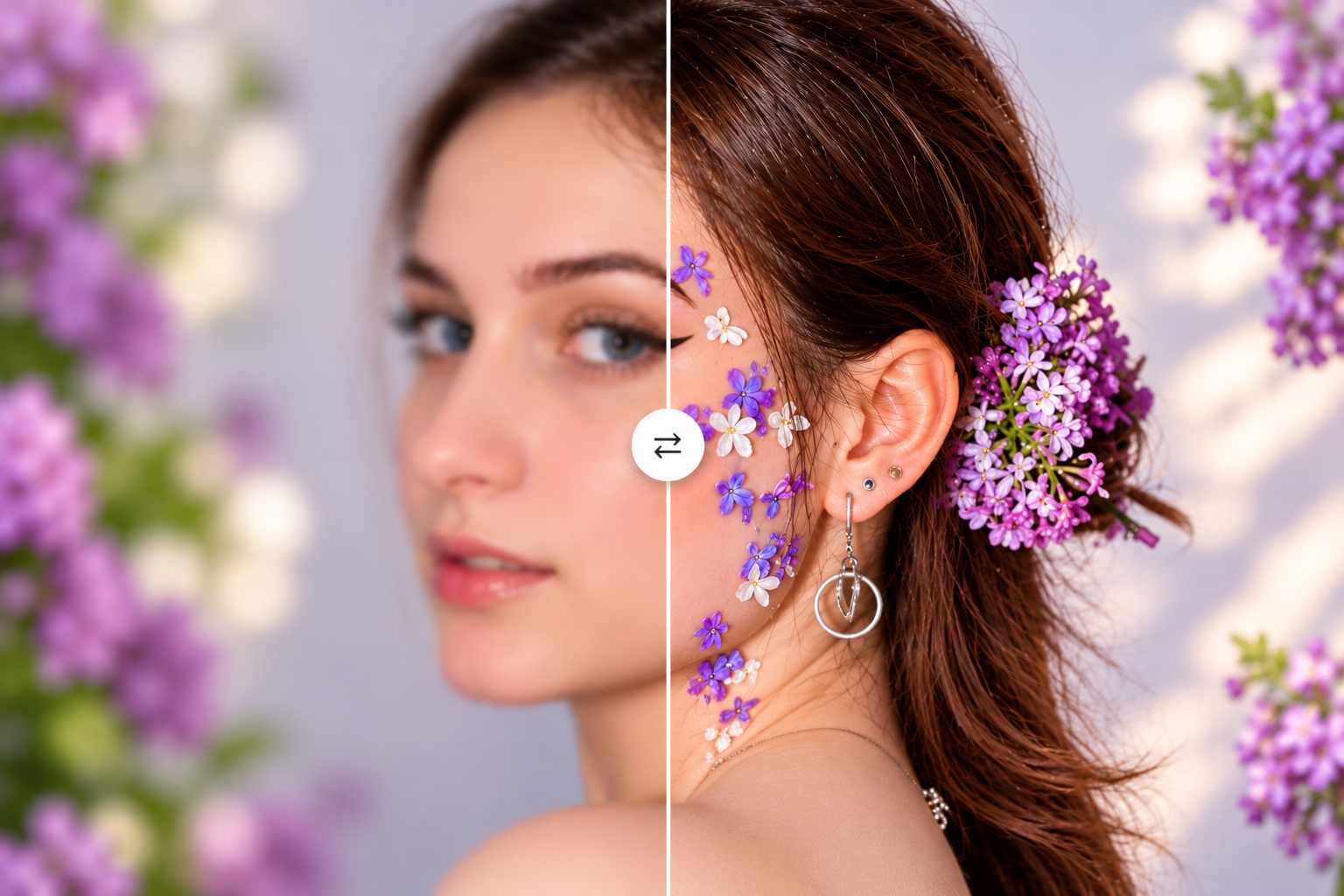
A photo rarely becomes useless all at once. More often, something small gets in the way: a face looks slightly soft, a product label loses definition, or an old family picture becomes difficult to view on a larger screen. The composition still works. The moment still matters. The image simply needs a little more clarity.
That is where browser-based image enhancement becomes interesting. For someone who needs one usable picture, opening a full editing suite can feel like more work than the problem deserves.
The browser tool Unblur Image offers a free basic unblurring workflow without requiring an account and accepts JPG, PNG, and WebP files. It also offers optional 2× enlargement on supported devices after signing in. These options address different needs, so deciding whether a picture needs clearer detail, larger dimensions, or both is a useful starting point.
The following five scenarios show what to inspect before deciding whether an enhanced image is ready to use.
Start with the Picture’s Intended Use
Before processing anything, decide where the result will appear. A small profile picture, a product listing, and a full-page print place different demands on the same file.
Compare the original and the enhanced version at matching display sizes. Otherwise, an enlarged preview can make the result seem more impressive simply because it occupies more screen space. Then inspect important details at 100% zoom.
The questions are straightforward. Is the subject easier to understand? Do recognizable features still look consistent with the original? Has the enhancement introduced distracting outlines, repeated textures, or unusual shapes?
A useful result should survive both close inspection and ordinary viewing.
1. A Portrait with Slightly Missed Focus
Consider a portrait taken beside a window. The lighting is pleasant, the expression feels natural, but the camera focused just behind the person. The face remains recognizable, although the eyelashes and hairline look soft.
This is a sensible image to evaluate because there is still visible structure to work with. Concentrate on the eyes, mouth, and transition between hair and background. Improvements in these areas matter more than making every patch of skin look equally detailed.
Watch for changes in identity. An eye that appears sharper but has a different shape is not a convincing improvement. Neither is a mouth with newly defined teeth that do not resemble the source.
For a profile photo, judge the result again at avatar size. If it looks clearer and still feels like the same person, additional processing may offer little benefit.
2. A Product Photo with Indistinct Edges
Now consider a photograph of a canvas backpack on a plain background. The overall shape is clear, but the stitching, zipper, and fabric texture look muddy when the picture is placed in a listing.
Here, the evaluation shifts from facial consistency to product accuracy. Examine the outline of the bag, the separation between zipper teeth, and any visible branding. A cleaner silhouette is useful; invented stitching or altered lettering can misrepresent what the buyer will receive.
Reflective hardware deserves particular attention. A bright rim around a metal buckle can resemble extra sharpness while actually making the object look unnatural.
View the result inside the intended listing layout before choosing it. If the existing photo cannot show a feature accurately, taking a closer photograph of that feature is more useful than repeatedly enhancing the same image.
3. A Screenshot with Small, Soft Text
Screenshots introduce a different challenge. A softened photograph may still communicate its subject, but a softened character can change the meaning of an instruction or a number.
Imagine a tutorial screenshot that has been resized several times before being inserted into a presentation. Button labels and menu names remain partly readable, although their edges have become uneven.
Evaluate the smallest text first. Compare similar characters, such as a lowercase “l” and the number “1,” against a known source whenever possible. Also check punctuation, decimal points, and the spacing between letters.
A cleaner-looking word is not proof that every character is correct. If the original application is available, capturing a fresh screenshot at a suitable resolution is usually the better starting point. Enhancement is most useful when that source is no longer accessible and the remaining text can still be verified.
4. An Old Family Photograph Prepared for Sharing
An older family picture may combine several problems: a small scan, soft edges, visible grain, and fading from the original print. Treating all of these as one blur problem can lead to unrealistic expectations.
Begin with the best scan available. If the physical photograph is still accessible, a new scan may provide more useful information than processing a compressed copy received through a messaging app.
When reviewing an enhanced version, focus on details that carry personal meaning: a familiar expression, the pattern on a jacket, or the outline of a house in the background.
Some softness belongs to the photograph. Removing every trace of grain is not necessary for an image to become easier to enjoy. Keep the original scan alongside the edited copy so future versions can always begin from the best available source.
5. A Dim Indoor Photo with Blur and Noise
A photo from an evening gathering often contains overlapping issues. A moving person creates blur, while the dim room leaves darker areas grainy and indistinct.
Inspect stationary and moving objects separately. The edge of a table may contain clearer information than a hand moving through the frame. Expecting the same level of improvement everywhere makes the evaluation less useful.
Pay attention to hair, patterned clothing, and objects in shadow. If these become flat patches or acquire strange repeated markings, the cleaner overall appearance may come at the expense of believable detail.
Finally, view the picture at its intended sharing size. A modest improvement can be enough for a family message or a small social post, even when the file remains unsuitable for a large print.
A Workflow That Makes Comparison Easier
Start with the original file whenever possible. Avoid taking a screenshot of an existing photograph or saving it through several applications before processing.
Choose the basic unblurring option first when your main concern is softness. Consider enlargement when the image also needs to occupy a larger space, and check the available output settings before starting.
Use the before-and-after preview to inspect one important area at a time. For a portrait, begin with the face. For a listing, begin with the product detail a buyer needs to inspect. For a screenshot, begin with the smallest meaningful text.
After downloading, open the result in its actual destination. A picture that looks effective in the preview may need a different crop or display size when placed on a website.
Keep the original and the version you prefer. Running an already enhanced file through repeated passes can make it harder to identify where unwanted changes began.
Knowing When to Keep the Result
The strongest reason to use a focused image tool is convenience. It gives people a straightforward way to evaluate whether an existing picture can become more useful.
Its limits matter just as much. Enhancement can produce plausible-looking detail without establishing that the detail was present in the scene. Severe blur, tiny faces, and unreadable lettering may remain unresolved even when the output appears cleaner.
For everyday work, use a concrete acceptance test: does this version communicate the intended subject more clearly while preserving the details that matter?
If it does, save it and move on. If it does not, a better source image, a fresh screenshot, or a new photograph may be the more effective next step. The best outcome is a picture that serves its purpose naturally, without making the editing itself the first thing someone notices.