
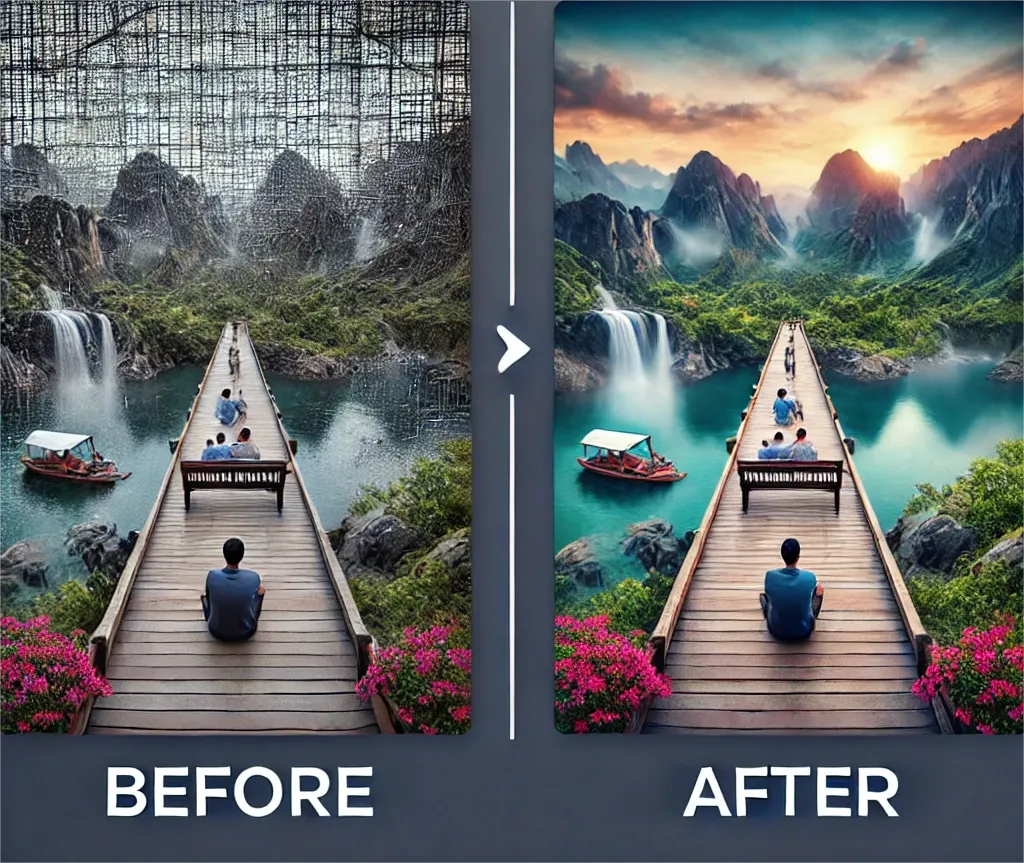
A photo can be almost right and still be difficult to use. The product looks clear, but the kitchen counter behind it is distracting. A travel picture captures the moment, except for a rubbish bin near the subject. A portrait has a good expression, yet the lighting makes the face look tired.
These are specific problems. They deserve specific edits.
An AI photo editor gives you a way to describe those changes in ordinary language. Instead of starting with layers and selection tools, you can explain what needs attention and which details should stay. The useful question is whether the finished picture still works as a photograph: believable lighting, recognizable people, accurate products, and a clear subject.
This guide explains how to approach everyday edits with an AI Picture Editor, what to include in your prompts, and where to look before accepting a result.
Start With One Visible Problem
Opening an editor without a clear goal often leads to unnecessary changes. A request such as “make this photo amazing” leaves the system to decide what improvement means. That might involve stronger colors, smoother skin, different lighting, or changes you never intended.
Before uploading, finish this sentence: “I would use this picture if…”
Perhaps you would use it if the background were simpler. Perhaps the subject needs a little more light. Perhaps a damaged corner needs repair.
The browser-based AI photo editor supports text-guided editing and offers free trial credits without requiring registration. Its workflow centers on uploading a picture, describing a change, and reviewing the generated image.
Give that workflow a narrow job. A small, well-defined request makes it easier to judge whether the result actually solves your problem.
Product Photos: Change the Setting, Protect the Product
For a product listing, the background helps presentation, but the product carries the information. A cleaner scene is useful only if the item remains accurate.
Imagine a handmade ceramic bowl photographed on a crowded dining table. You want a neutral catalog image. Your instruction should cover both the replacement background and the characteristics that identify the bowl.
Try:
Replace the dining table background with a plain warm-gray studio setting. Keep the bowl’s shape, glaze color, rim, and visible surface marks unchanged. Add a subtle contact shadow beneath it.
The contact shadow matters because an isolated object can appear to float. Surface marks matter because handmade products often have details that distinguish one item from another.
After generation, compare the outline first. Then inspect any lettering, patterns, reflections, and small attachments. An AI photo editor may produce an attractive image while introducing a detail that does not belong to the actual product.
For a lifestyle version, request a believable setting with a clear purpose: a breakfast table, a bathroom shelf, or a quiet desk. Keep decorative additions modest enough that customers can still understand what is being sold.
Travel Photos: Remove Distractions Without Breaking the Scene
Object removal is straightforward to request and easy to evaluate badly.
A distracting sign may disappear, yet the wall behind it may develop repeated textures. Removing a person can leave an interrupted railing or a pavement line that bends in the wrong direction. At normal viewing size, these mistakes can hide inside an otherwise convincing image.
A useful prompt identifies the distraction by location:
Remove the red rubbish bin beside the bench on the right. Rebuild the pavement and wall behind it. Preserve the bench, surrounding plants, perspective, and afternoon shadows.
Location is especially helpful when the picture contains several similar objects.
When reviewing, follow the scene’s geometry. Trace the curb, fence, horizon, or building edge through the edited area. Then look at texture. Bricks should vary naturally, and paving stones should continue in a plausible pattern.
If the distraction covers a large part of the subject, consider choosing another photograph. Reconstructing a small patch of pavement and rebuilding half a bicycle are very different requests.
Profile Pictures: Make the Instruction Match the Purpose
A professional profile picture needs a clear face, suitable framing, and lighting that helps people recognize the subject. It rarely needs every visible feature polished away.
AI Picture Editor includes portrait editing among its supported uses. For a restrained result, describe the presentation you need and name the characteristics you want preserved.
For example:
Prepare this portrait for a company profile. Slightly brighten the face and reduce temporary blemishes. Preserve facial proportions, expression, hairline, freckles, and visible skin texture. Keep the existing background.
This separates a practical adjustment from an open-ended beauty treatment.
Review the portrait at two sizes. At full size, check the eyes, teeth, hairline, and boundaries around glasses. At the size used on your website or profile, check whether the face remains clear and the overall image feels balanced.
A technically detailed result can still look uncomfortable as a small avatar. The final display size is part of the editing decision.
Old Photos: Repair Damage With a Clear Reference Point
Family photographs introduce a different challenge. You may want clearer faces and fewer scratches while keeping the age and character of the original.
AI Picture Editor offers an old-photo restoration starting point. Before using it, decide whether your goal is faithful repair or a more interpretive version.
For faithful repair, try:
Repair the scratches and faded patches in this photograph. Preserve every person’s expression, clothing, position, and the original composition. Keep the photograph monochrome and avoid adding decorative details.
Keep an untouched copy nearby for comparison.
Pay particular attention to small faces, jewelry, patterned clothing, and objects partly hidden by damage. A generated detail can look convincing without accurately representing what was originally there.
Colorization is a separate creative choice. If you want to explore it, save that version separately so the repaired monochrome image remains available.
Write Prompts That Are Easy to Review
A practical AI photo editor prompt contains three parts: the target, the requested change, and the details to preserve.
For example:
Brighten the person standing by the window. Lift the shadows on the face slightly. Preserve the outdoor view, clothing colors, and direction of the light.
Each sentence gives you something to check.
Avoid stacking unrelated requests into the first attempt. Changing the background, repairing blur, replacing clothing, and applying a painting style together makes it difficult to identify which instruction caused an unwanted result.
Start with the change that determines whether the photograph becomes useful. Review it, then decide whether another generation is necessary. If a revision goes too far, return to the original with a narrower instruction.
Understand the Practical Limits Before Generating
AI Picture Editor accepts JPG, PNG, and WEBP uploads. Guest uploads support files up to 10MB per image, while signed-in limits vary by model.
The free trial uses credits. Generation costs depend on the selected model and settings, so check the displayed cost before running an edit. Another attempt uses credits too; free access should not be confused with unlimited generation.
Downloads are available without watermarks, while output formats depend on the model and generated result. The site also states that automatic folder-based batch editing is not currently available.
These details matter when planning work. Preparing one profile picture is a different task from updating an entire product catalog.
Decide Whether the Photo Is Ready to Use
Before downloading your final choice, compare it with the original and ask three questions.
Did the intended problem improve? Did anything important change unexpectedly? Does the image work at its actual publishing size?
For products, accuracy deserves special attention. For portraits, recognition matters. For travel pictures, inspect reconstructed scenery. For restored photographs, separate plausible detail from detail you can verify.
An AI photo editor becomes more useful when you give it a clear brief and keep the final judgment yourself. Start with a photograph worth keeping, ask for a precise improvement, and spend a moment checking the result. That is a practical route from an almost-usable picture to one you can confidently share.