
For 2026, the best inventory tool depends on how you sell. Multi Location Product and Inventory Management fits multi warehouse stores. ATUM is best for reports and suppliers. Smart Manager suits big catalogs with bulk edits. WP Inventory Manager works without WooCommerce. Zoho Inventory is best for multichannel selling.
If you are still wondering which inventory management WordPress plugin is best for 2026, this guide will make the decision much easier. We will compare the top options, explain what each plugin does best, and show which one fits different types of stores. By the end, you will clearly understand which tool can manage your stock better and support your store as it grows.
Why Inventory Management Matters for WordPress Stores?
Inventory management matters for WordPress stores because it keeps stock clear and simple. When you always know what is available, orders run smoothly. This is even more important for WooCommerce stores with many products. It also protects your store reputation over time.
Good stock tracking helps you avoid overselling and stockouts. When customers see that an item is in stock, it should be true. Real-time updates and clear availability build trust. You can also use back-in-stock alerts to bring customers back.
It also makes daily work faster and more organized, and here is what it improves:
- Faster order packing and shipping
- Fewer manual mistakes during fulfillment
- Easier reordering when items get low
- Better links with shipping and accounting tools
Finally, inventory data helps you make better choices and grow without stress. You can spot best-selling items, seasonal trends, and slow-moving stock. This supports smarter pricing, promotions, and purchasing decisions. It also reduces costs by avoiding overstocking and waste.
Which Inventory Management WordPress Plugin Is Best for 2026?
Running an online store needs clear stock control. Many shops now sell from more than one place. Good inventory tools prevent mistakes and lost sales. Below, you can explore the best plugins for 2026.
Multi Location Product & Inventory Management for WooCommerce
Handling stock across many branches can get messy fast, and this plugin is built for smooth WooCommerce multi locations inventory management. It helps businesses manage products, stock, and orders across multiple outlets or warehouses. Everything stays organized in one dashboard, so managing regional branches becomes easier, and your online and offline stock stays aligned. As an inventory management WordPress plugin, it gives store owners better control, reduces manual errors, and keeps product data accurate across every location.
Key & Core Features:
- Create and manage multiple warehouse locations
- Separate stock quantity for each location
- Stock transfer between warehouses
- Location-based stock display
- Set location priority for order fulfillment
- Manage stock from WooCommerce product page
- Support for simple and variable products
- Real-time stock updates per location
- Centralized inventory overview
This plugin mainly focuses on accurate multi-location stock control.
Version Availability: Free available, Paid starts at 79 USD/year.
Best For:
- Stores with multiple warehouses
- Businesses with physical shops and online store together
- Wholesale and retail combined stores
- Franchise businesses with branch-level stock
- Businesses that need stock transfer between locations
- Stores that want location-based stock visibility
- Growing businesses planning to expand to new warehouses
ATUM Inventory Management for WooCommerce
If you want deeper control of stock and reporting, this option is a strong fit for WooCommerce stores. It offers a centralized system for inventory, supplier tracking, and purchase planning, so store owners can manage stock with more confidence.
Key & Core Features:
- Stock Central dashboard
- Inventory logs and history tracking
- Low stock alerts
- Supplier management
- Purchase order management
- Product data editing
- Advanced reporting tools
- Add-ons for multi-inventory and forecasting
ATUM is centered around reporting, tracking, and supplier control.
Version Availability: Free core + paid add-ons (price can vary)
Best For:
- Small to medium WooCommerce stores
- Stores needing detailed inventory reports
- Businesses managing suppliers
- Stores that want purchase order management
- Owners who want a central stock dashboard
- Businesses looking for a strong free solution
Smart Manager for WooCommerce
For stores with lots of products and frequent updates, an Excel-like editing screen can save a lot of time. This plugin brings a spreadsheet-style dashboard where you can manage products, orders, and customers quickly, without clicking into each item one by one.
Key & Core Features:
- Spreadsheet-style product management
- Bulk editing of stock, price, and details
- Advanced search and filtering
- Inline product editing
- Bulk delete and duplicate options
- Manage orders, coupons, and users
- Export and import support
This plugin is designed for speed and bulk operations.
Version Availability: Limited free + Paid Pro, starting price 199 USD/year
Best For:
- Stores with large product catalogs
- Businesses needing bulk product editing
- Stores updating prices frequently
- Shops managing variable products
- Admins who prefer spreadsheet-style editing
- Teams that want faster product management
WP Inventory Manager
Not every website needs WooCommerce, and that is where this plugin becomes useful. It helps you organize and display inventory directly from WordPress, making it a solid choice for businesses that want a simple inventory listing system without a full online store setup.
Key & Core Features:
- Simple inventory listing system
- Custom fields for product details
- Category and grouping support
- Frontend inventory display
- Search and filter options
- Image upload for inventory items
- Extensions for advanced features
This plugin works well for non-eCommerce inventory tracking.
Version Availability: Free + Paid extensions, licenses start at 49.99 USD
Best For:
- Businesses not using WooCommerce
- Equipment rental companies
- Internal stock tracking
- Schools or organizations tracking assets
- Small local businesses needing simple inventory
- Service providers managing tools or items
Zoho Inventory
When a business sells through different platforms, stock control gets harder, and a cloud system can handle that better than a basic plugin. This platform is made for managing inventory, orders, warehouses, and shipping from one place, and it can connect with WooCommerce as part of a bigger setup.
Key & Core Features:
- Multi-channel inventory sync
- Order and shipment management
- Warehouse management
- Automated stock updates
- Reporting and analytics
- Invoice and billing tools
- Integration with accounting software
- Mobile app access
Zoho Inventory is a broader inventory system beyond WordPress.
Version Availability: Free (limited) via signup, Pro starts at 29 USD/month
Best For:
- Multi-channel sellers
- Businesses selling on marketplaces and WooCommerce
- Companies needing accounting integration
- Growing eCommerce brands
- Businesses needing cloud-based inventory
- Stores managing international sales
Here’s a quick comparison table to see which plugin suit’s your store the most
| Plugin Name | Free/Paid Availability | Starting Price | Best For | Main Strength |
| Multi Location Product & Inventory Management for WooCommerce | Free + Paid | 79 USD/year | Multi-warehouse stores | Separate stock per location with warehouse transfers |
| ATUM Inventory Management for WooCommerce | Free core + Paid add-ons | Varies | Reporting-focused stores | Central dashboard with reports and supplier tools |
| Smart Manager for WooCommerce | Limited Free + Paid Pro | 199 USD/year | Large product catalogs | Fast bulk editing with spreadsheet view |
| WP Inventory Manager | Free + Paid extensions | 49.99 USD | Simple non-eCommerce inventory | Lightweight inventory listing system |
| Zoho Inventory | Free (limited) + Paid | 29 USD/month | Multi-channel selling | Cloud-based stock sync and order management |
Overall, Multi Location Product & Inventory Management for WooCommerce stays slightly ahead because it handles multi-warehouse stock better. Still, the other plugins offer solid features in their own areas. Pick the one that matches your store’s needs and budget.
Key Features to Look for in an Inventory Management WordPress Plugin
Inventory tools help WordPress stores stay organized and avoid costly stock mistakes. Choosing the right features saves time and prevents order problems. Before selecting a plugin, review the most important functions that support smooth daily store operations.
- Real-Time Stock Tracking: Inventory levels update automatically after each sale, helping prevent overselling, reduce stockouts, and keep product availability accurate for customers at all times.
- Multi-Channel Integration: Stock syncs across platforms like Amazon, eBay, and physical stores, keeping all sales channels connected and managed from one central system.
- Bulk Inventory Management: Store owners can edit stock levels, SKUs, and product details in bulk, saving time and reducing errors during large updates.
- Low Stock Alerts & Reorder Points: Notifications appear when stock runs low, helping you reorder on time and avoid sudden product shortages that disrupt sales.
- Barcode Scanning Support: Barcode tools speed up stock intake and order packing, reducing manual entry mistakes and improving warehouse accuracy.
- Reporting & Analytics: Clear reports show best-selling products, slow-moving stock, and turnover rates, helping you plan pricing, purchasing, and promotions wisely.
- Multi-Warehouse Support: Inventory can be managed across multiple storage locations or fulfillment centers, making stock control easier for growing businesses.
- Purchase Order Management: Supplier orders and incoming stock are tracked properly, helping maintain smooth procurement and better restocking control.
- Product Bundling & Variants: Complex products with size, color, or bundled items are handled smoothly, keeping stock levels accurate for each variation.
- User Roles & Permissions: Access controls limit who can change inventory data, improving security and reducing the risk of costly mistakes.
Selecting the right features depends on your store size and sales setup. Focus on tools that match your daily needs. A clear and simple inventory system keeps orders smooth and customers satisfied.
Free vs. Paid Inventory Management WordPress Plugins: Which One Is Worth It?
Choosing between free and paid inventory plugins depends on your store’s size and needs. Free tools work well for small shops with simple stock control. Paid options offer stronger features for growing businesses. Here is a clear comparison to help you decide.
| Feature | Free Plugins | Paid Plugins |
| Basic Inventory Tracking | Yes | Yes |
| Advanced Features such as multi-warehouse, purchase orders | Limited or unavailable | Full access |
| Integration with Other Platforms | Often limited | Broad integrations such as POS, shipping, accounting |
| Automation | Basic, manual updates often required | Automated workflows and syncing |
| Support | Community support or limited documentation | Priority support and regular updates |
| Customization | Limited | More flexible and customizable |
| Scalability | Not ideal for large stores | Designed for growing businesses |
When to Choose Free Plugins
- Small store with a limited product range
- Early-stage setup where testing basic inventory features matters most
- Manual stock updates and lighter support needs are manageable
When to Invest in Paid Plugins
- Large or growing inventory that needs stronger control
- Advanced features such as multi-location tracking or supplier management
- Reliable support and regular updates are important
- Multi-channel selling or third-party logistics are part of operations
How to Choose the Right Inventory Management WordPress Plugin?
Choosing the right inventory plugin can feel confusing at first. Many options look similar but offer different features. Your store size and goals matter most here. Follow the steps below to make a smart choice.
Step 1: Assess Your Store’s Needs
Start by looking at your store size and setup. A small boutique needs fewer tools than a large multi warehouse shop. Think about product types too. Simple items need basic tracking, while variations and bundles need stronger control. Also, check where you sell, such as only your site or Amazon and physical stores.
Step 2: Define Must Have Features
Before installing anything, list the features you truly need. Real-time stock tracking is important for most stores. Low stock alerts help prevent missed sales. Multi location inventory matters if you manage more than one warehouse. A clear checklist helps you avoid paying for features you will not use.
Step 3: Check Plugin Compatibility
Your plugin must work smoothly with WordPress and WooCommerce. It should match your current versions and not cause errors. It also needs to fit with your theme and other tools you use. When compatibility is poor, stock and orders can break.
- Check if the plugin supports your current WordPress version.
- Confirm it supports your current WooCommerce version too.
- Test it with your active theme for layout issues.
- Make sure it works with shipping, POS, and CRM plugins.
- Look for recent updates that match your site setup.
- Run it on a staging site before using live.
Step 4: Compare Free And Paid Options
Budget plays a big role in your decision. Free plugins are good for basic needs and small stores. Paid plugins usually include advanced features and better support. Growing stores often need automation and deeper control. Compare both types carefully before deciding which fits your plan.
Step 5: Read Reviews And Ratings
User feedback gives real insight into plugin performance. Check ratings on WordPress.org and other review sites. Look for comments about support quality and update frequency. Frequent updates show active development. Poor reviews about bugs or slow help are warning signs you should not ignore.
Step 6: Test Before Committing
Never install a plugin on your live store without testing. Use a free version or trial first. Try it in a staging site to check speed and usability. Make sure stock updates, reports, and integrations work properly. Testing reduces the risk of breaking your store.
Step 7: Review Support And Documentation
Good documentation saves time when problems appear. Look for clear guides, tutorials, and help articles. Active support forums or direct customer service are important. Fast responses can prevent long downtime. Strong support is often a key difference between free and paid plugins.
Step 8: Plan For Scalability
Think about your store’s future growth. Manual tracking may work now, but fail later. Look for features like automation, analytics, and multi channel support. A scalable plugin helps your business grow without constant system changes. Long-term planning saves money and stress.
The right plugin depends on your store’s needs. Small shops can start simple and upgrade later. Larger stores need stronger tools from the start. Choose wisely so your inventory stays clear and controlled.
How to Set Up an Inventory Management Plugin in WordPress?
Setting up an inventory management plugin in WordPress is usually simple, but the exact steps depend on which plugin you choose. In this guide, we’ll use Multi Location Product & Inventory Management for WooCommerce because it is beginner-friendly, works without coding, and offers both free and Pro versions. You can start with free and upgrade later if you need more features.
System Requirements
Before installing, make sure your website meets these minimum versions. This helps the plugin run smoothly and avoids errors.
| Requirement | Minimum Version |
| WordPress | 5.0 or higher |
| WooCommerce | 4.0 or higher |
| PHP | 7.2 or higher |
| MySQL | 5.6 or higher |
If your site meets these requirements, you can move to installation.
Step 1: Install the Plugin
You can install the plugin in two ways. Most store owners use the dashboard method because it’s faster, but manual upload is also useful.
Option 1: Install from the WordPress Dashboard
- Log in to your WordPress admin panel
- Go to Plugins → Add New
- Search for Multi Location Product & Inventory Management
- Click Install Now
- Click Activate
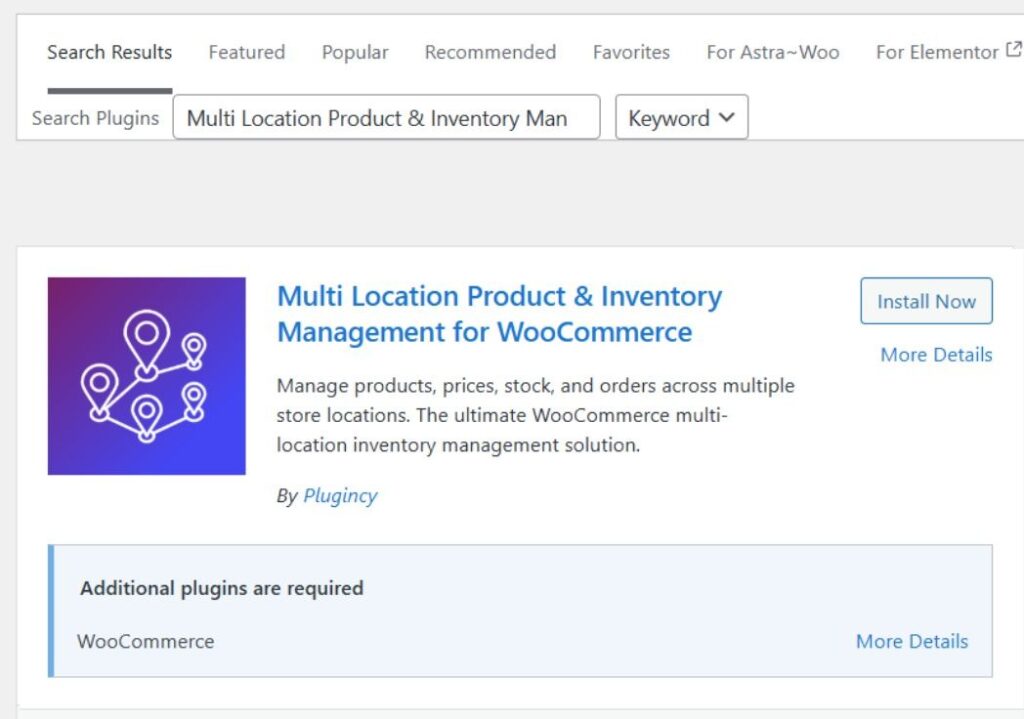
Once activated, you’ll see the plugin options inside your dashboard.
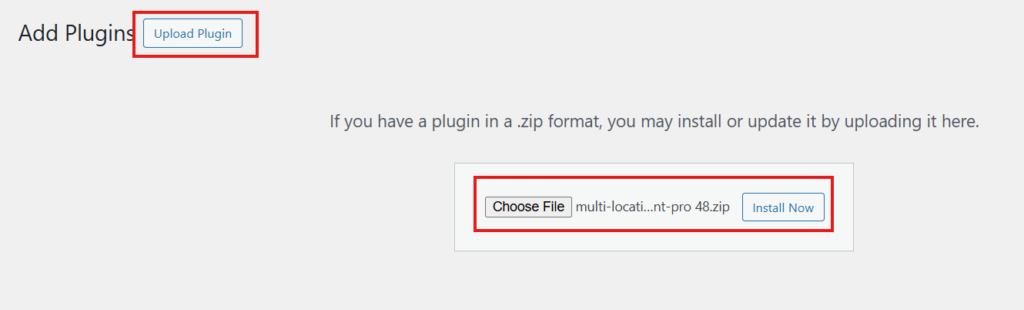
Option 2: Install by Manual Upload
If you downloaded the ZIP file:
- Download the plugin ZIP from the WordPress Plugin Directory
- Go to Plugins → Add New → Upload Plugin
- Click Choose File, select the ZIP file
- Click Install Now
- Click Activate Plugin
Step 2: Activate the Pro Version (If You Purchased It)
If you bought the Pro version, you will receive a license key. Without activating it, the premium features will stay locked.
Go to:
Location Manage → Settings → Plugin License
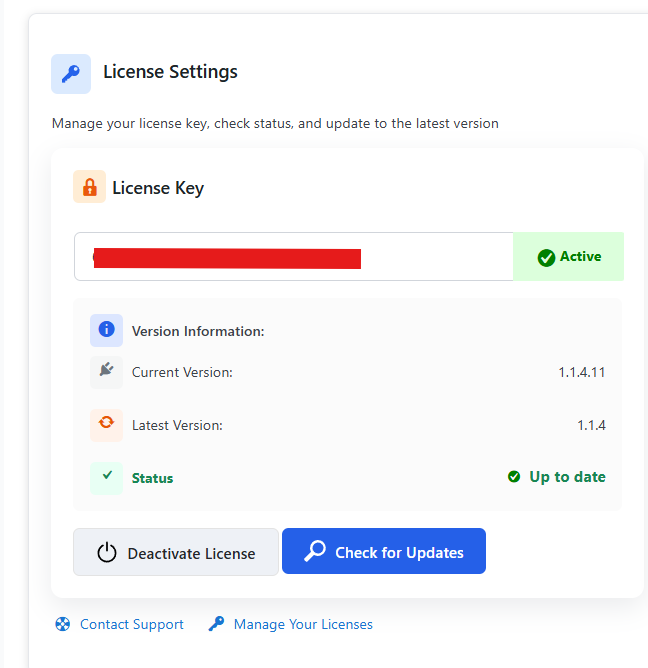
Now paste the license key and click Activate. After this, Pro features will be enabled.
Step 3: Create Locations
After installation, the first setup task is creating your store locations. A location could be a country, a warehouse, a branch, or even a pickup point.
Go to:
Location Manage → Locations
Now add your location details. For example, you might create a location like:
- Name: America
- Slug: america
- Other required fields as needed
Click Add New Location when done.
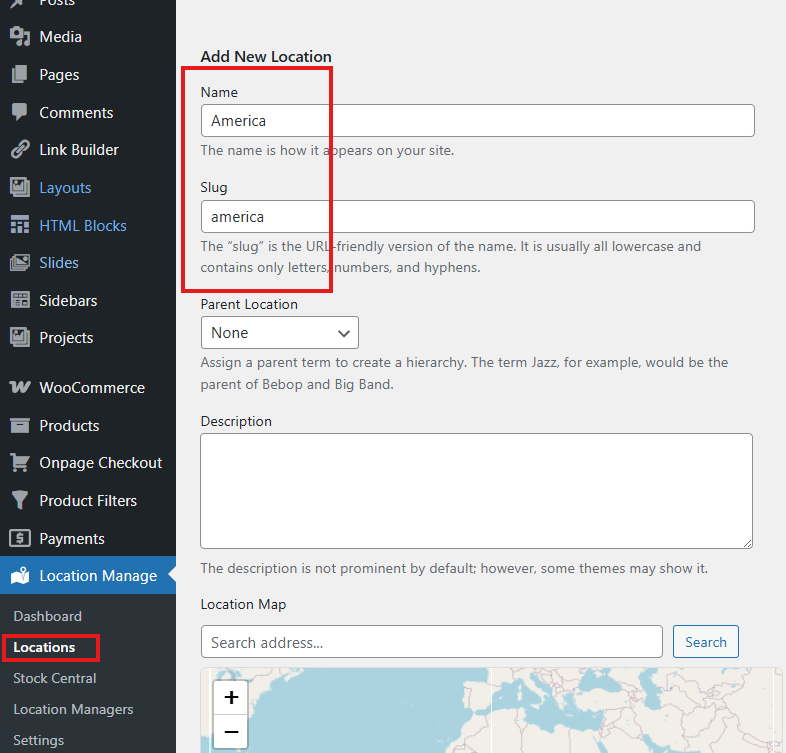
You can create as many locations as you want. The plugin works best when your locations are clearly named and organized.
Step 4: Assign Locations to Products
Creating locations is not enough. You must assign them to products so WooCommerce knows where each product is available.
Go to:
Products → All Products
Now edit an existing product (or add a new one). On the product edit screen, scroll until you find the Location section and select the location(s) where that product is available.
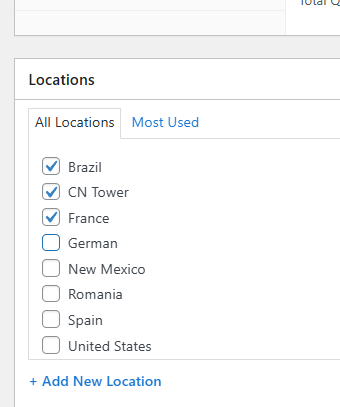
Next, go to the product settings area:
Product Data → Location Settings
Here you can set location-based product details, such as:
- Stock status per location
- Regular price and sale price per location
- Backorder option per location
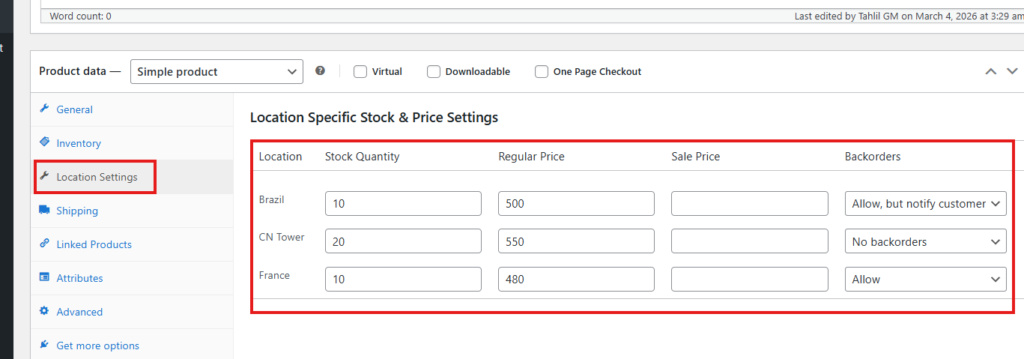
When done, click Update (or Publish if it’s a new product).
Now your product is properly linked to locations.
Step 5: Set Up Low Stock and Out-of-Stock Alerts
Stock alerts are important because they help you restock before items run out. This plugin lets you set alert limits so you get notified when stock becomes low.
Go to:
Location Manage → Settings → Inventory
Now set these two values:
- Low Stock Threshold: for example, 5
This means you will get an alert when stock reaches 5. - Out of Stock Threshold: set it to 0
This means you will get an alert when stock reaches 0.
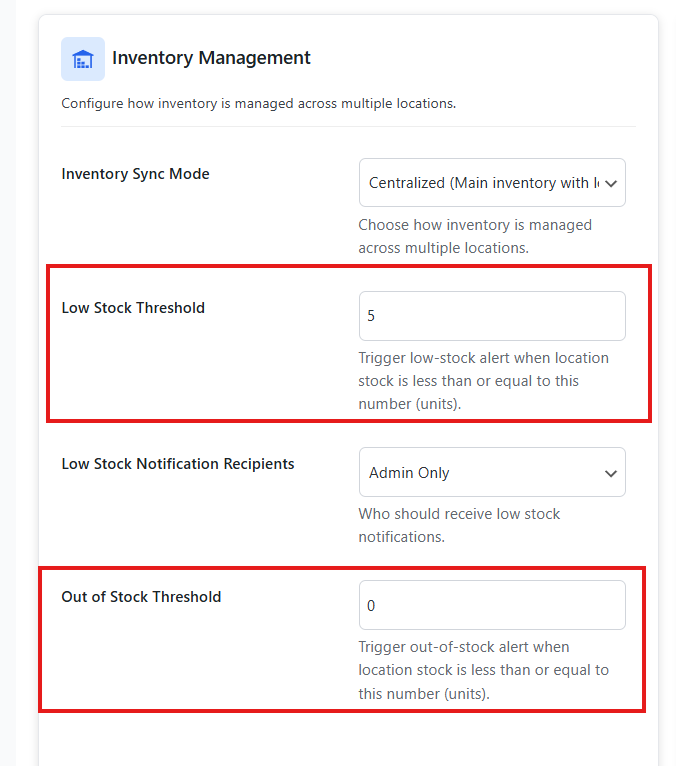
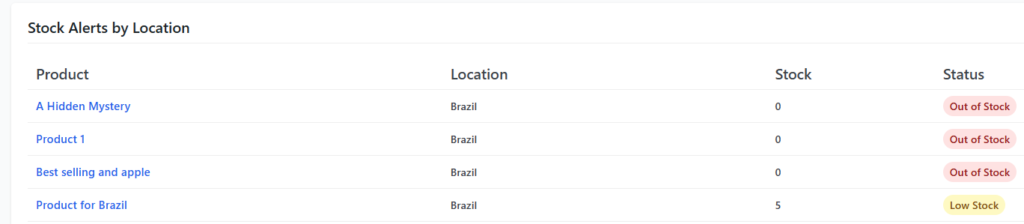
After saving, you can view alerts from:
Location Manage → Dashboard → Stock Alerts by Location
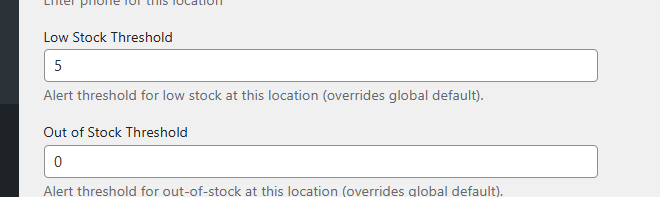
You can also set low stock and out-of-stock levels while creating or editing locations, if you prefer location-specific alert levels.
Step 6: Enable Location-Wise Stock, Pricing, Currency, and Backorders
This is one of the most useful parts of the plugin. It lets you manage different prices and stock based on location. For example, a product might cost $5 in America, but due to currency rate or shipping cost, the price might be different in another region.
Go to:
Location Manage → Settings → Inventory → General Settings
Enable the options you need:
- Enable Location Stock
- Enable Location Pricing
- Enable Location-Wise Currency
- Enable Location Backorder
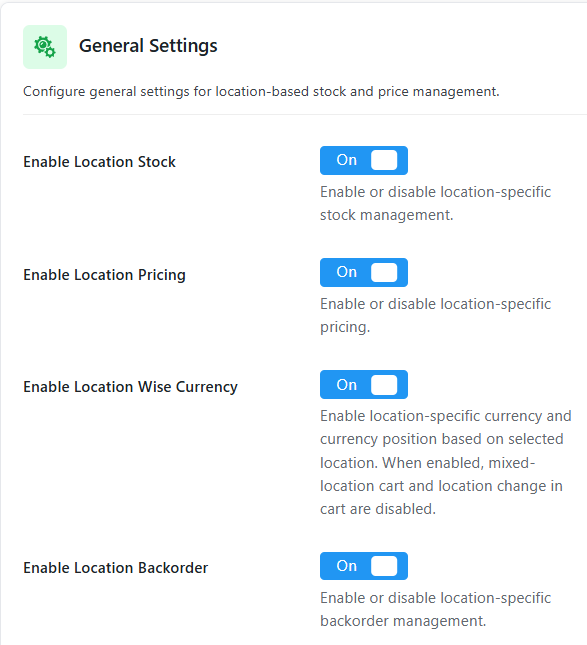
After enabling these, you will be able to manage stock, price, currency, and backorders separately by location inside each product.
Step 7: Set Currency for Each Location
To use location-wise currency, each location needs a currency to be selected.
If you didn’t add it earlier, go to:
Location Manage → Locations
Now edit the location you want. Look for the Currency field, select the currency, and click Update.
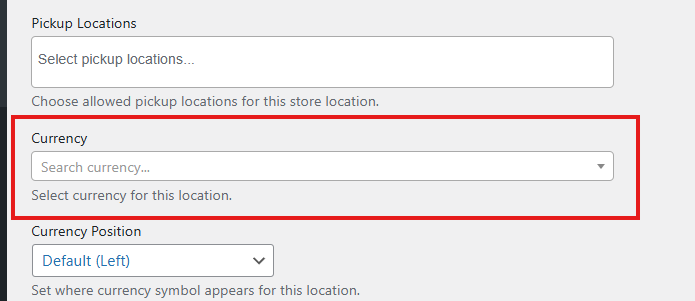
After this, your shop can display the correct currency depending on the selected location.
Final Notes
At this stage, your basic setup is complete. You have:
- Installed the plugin
- Created locations
- Assigned products to locations
- Enabled stock alerts
- Turned on location-wise stock, pricing, currency, and backorders
The plugin also offers extra features you can explore later, like adding location managers, creating a location selector for visitors, and using advanced alerts. But the steps above are the essential setup that most stores need to start managing inventory properly.
Do Inventory Management Plugins Slow Down WordPress?
Yes, inventory management plugins can slow down a WordPress site, but the impact depends on the plugin’s code quality, feature set, and hosting environment. Here’s what you need to know:
Why Some Inventory Plugins Affect Performance
Inventory plugins help manage stock in busy stores. Yet some plugins can slow your website down. Slow speed can hurt sales and user trust. Read the points below to learn the real causes.
Heavy Backend Processes
Some plugins run tasks all day in the background. They sync stock levels, update orders, and create reports. This steady work uses CPU and memory. On shared hosting, limits are lower. When resources get tight, the admin area slows down, and pages take longer to load.
Excessive Scripts And Styles
Some tools load extra CSS and JavaScript everywhere. These files can appear on all pages, even blogs. That means more requests and a bigger page size. The result is slower loading for visitors. Try plugins that load files only where needed, like product and checkout pages.
Database Bloat
A few plugins store too much data over time. They save logs, old reports, and repeated entries. This makes database tables bigger than needed. Big tables slow down product searches and stock updates. Regular cleanup helps a lot. A database optimization plugin can also be a helpful anchor tool here.
Plugin Conflicts
Issues can happen when plugins clash with themes. Two tools may try to change stock rules together. This can cause slow pages or broken features. Keep plugins updated to reduce conflict risk. Also, test new plugins on a staging site first, before using them on your live store.
How to Avoid Performance Issues
- Choose Lightweight, Well-Coded Plugins: Prioritize plugins with good reviews, regular updates, and minimal frontend impact.
- Use Performance Monitoring Tools: Tools like Query Monitor, WP Hive, or GTmetrix can help identify slow plugins and their impact on load times.
- Disable Unused Features: Many plugins offer modular settings—disable features you don’t need to reduce overhead.
- Use Caching and CDN: Implement caching plugins and a content delivery network to offset performance hits.
- Test in Staging First: Always test new plugins in a staging environment to assess their impact before going live.
Common Problems Store Owners Face With Inventory Management WordPress Plugins
Inventory plugins help stores manage stock more easily. Still, many store owners face common problems. Small issues can grow into serious order mistakes. Let’s look at the most common challenges below.
Plugin Conflicts And Compatibility Issues
Many inventory plugins clash with other plugins or themes. This often happens when updates are missing. When tools do not work well together, the stock may stop updating correctly. Sometimes parts of the website break completely. Checking compatibility before installing helps reduce these problems and keeps your store stable.
Inaccurate Stock Updates
Stock errors are one of the biggest concerns for store owners. Some plugins fail to reduce inventory after a sale. This is common with virtual or downloadable products. When the stock does not update properly, overselling happens. Customers may place orders for items that are no longer available.
Limited Features In Free Versions
Free plugins are helpful for small stores, but limits appear quickly. Advanced tools like multi warehouse support or automation are often missing. As a business grows, these missing features slow operations. Store owners then need to upgrade or switch plugins, which takes extra time and effort.
Lack Of Real Time Sync And Strong Support
Inventory delays can cause serious confusion across sales channels. If the stock does not sync in real time, order errors increase. Free or poorly maintained plugins may also lack proper support. During busy sales periods, slow responses make troubleshooting harder and add stress to store management.
Performance And User Interface Problems
Heavy plugins can slow down website speed, especially on shared hosting. Slow pages hurt user experience and search rankings. Some plugins also have outdated dashboards. A confusing interface increases the learning curve and slows daily work. Clear design and good performance are important when choosing any tool.
Choosing the right plugin reduces many of these risks. Always test tools before using them live. Read reviews and check the update history carefully. A stable plugin keeps your stock accurate and the store running smoothly.
Tips to Mitigate These Issues
- Test in a staging environment before deploying to your live site.
- Check compatibility with your WordPress version, theme, and other plugins.
- Read recent reviews and support forum threads for red flags.
- Invest in a reputable premium plugin if your store is growing or has complex needs.
Inventory Management Tips for WordPress Store Owners
Managing stock well keeps your WordPress store running smoothly. Small mistakes in inventory can lead to lost sales. Simple habits can prevent many common stock problems. Follow these practical tips below to stay organized.
Set Reorder Levels
Running out of popular items hurts sales quickly. Setting reorder levels helps you restock on time. Decide on a minimum quantity for each product. When the stock reaches that number, place a new order. This simple step reduces stockouts and keeps your store ready for steady demand.
Use Low Stock Alerts
Manual checking takes time and often causes delays. Low stock alerts send automatic reminders when items run low. These alerts help you act fast before products sell out. Most inventory plugins include this feature, and it keeps your daily stock control much easier.
Keep SKU Structure Organized
Clear SKU codes make product tracking simple. Create a consistent format for all products. For example, use short codes for category, size, or color. Organized SKUs reduce confusion during order packing. They also make searching and reporting faster inside your dashboard.
Review Reports Monthly
Regular checks help you understand product performance. Look at monthly reports to see best sellers and slow movers. This helps you adjust pricing or plan promotions. Reviewing reports also shows which products need better stock planning for the next month.
Automate Where Possible
Manual updates increase the risk of mistakes. Automation saves time and improves accuracy. Use tools that update stock after each sale. Sync inventory across channels if you sell in many places. Automation reduces daily workload and keeps stock data correct.
Good inventory habits prevent many common store problems. Small actions today avoid bigger issues later. Keep your system simple and consistent. Strong stock control supports long-term store growth.
Frequently Asked Questions
Here is a simple FAQ section that helps clear common doubts readers still may have. These questions cover extra points that were not mentioned earlier and give more clarity about choosing the right tool. Each answer is short, clear, and helpful so readers can understand the topic with ease.
How Do I Know If I Really Need an Inventory Management WordPress Plugin for 2026?
You may need an inventory plugin if your store has regular stock changes and manual updates feel slow or confusing. A plugin keeps your stock correct, so you do not oversell by mistake. It also makes daily tasks easier because everything is managed from one place. This is even more helpful when your store begins to grow.
Does the Best Inventory Management WordPress Plugin for 2026 Work Well for Small Stores?
Yes, the top plugins work well for small stores too. Even a small store can face stock mistakes without the right tools. Using a plugin saves time and keeps your store more reliable. It also helps you focus more on selling and less on fixing stock errors.
Can the Best Inventory Management WordPress Plugin for 2026 Support Seasonal or Holiday Sales?
Yes, these plugins can handle busy sales periods smoothly. They update stock fast, even when many orders come in at once. This prevents selling items that are already out of stock. You also get clear reports that help you plan better for the next big season.
Is It Safe to Use an Inventory Management WordPress Plugin for 2026 With Many Other Plugins?
Yes, it is safe when you choose a plugin that is updated often and works well with WooCommerce. Conflicts can happen, but trusted plugins stay stable even with many tools installed. Keeping your site updated reduces problems. Testing on a staging site first keeps your store safe.
Can an Inventory Management WordPress Plugin for 2026 Handle Stores With Many Product Variations?
Yes, good plugins track variations like size, color, and style without trouble. They keep stock correct for each variation, so orders are packed correctly. This helps avoid mix-ups and improves customer satisfaction. It also shows which variations sell the most.
Final Words
Managing inventory the right way can save your store from refunds, angry customers, and lost sales. A clear system keeps stock accurate, orders smooth, and daily work simple. Whether you run a small shop or a growing online business, the right tool gives you better control and more confidence during busy sales days.
If you are still wondering which inventory management WordPress plugin is best for 2026. The short answer is Multi Location Product & Inventory Management for WooCommerce for multi warehouse control, ATUM for reporting, Smart Manager for bulk editing, WP Inventory Manager for simple setups, and Zoho Inventory for multi channel selling.